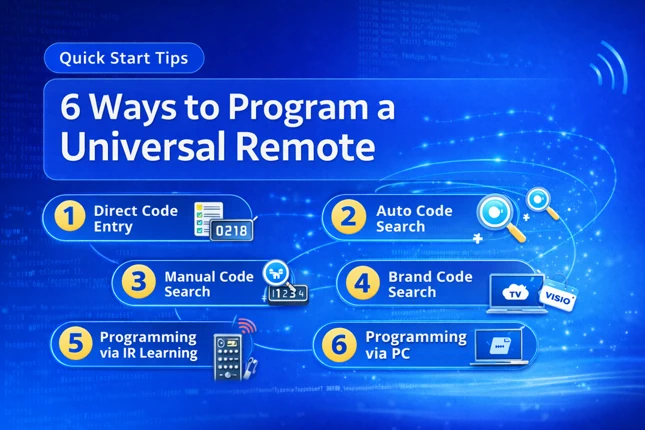
This article explains six different methods to program an RCA universal remotes such as Direct Code Entry, Auto Code Search, Brand Code Search, Manual Code Search, IR Learning, and the RCA Smart Remote App.
1. Direct Code Entry
If you have the remote code ready with your, then direct code entry is the method you need to choose. Below given are the step-by-step instructions to program your remote using this method.
- Find RCA universal remote codes for your device brand using our code lookup tool.
- Turn on your device manually.
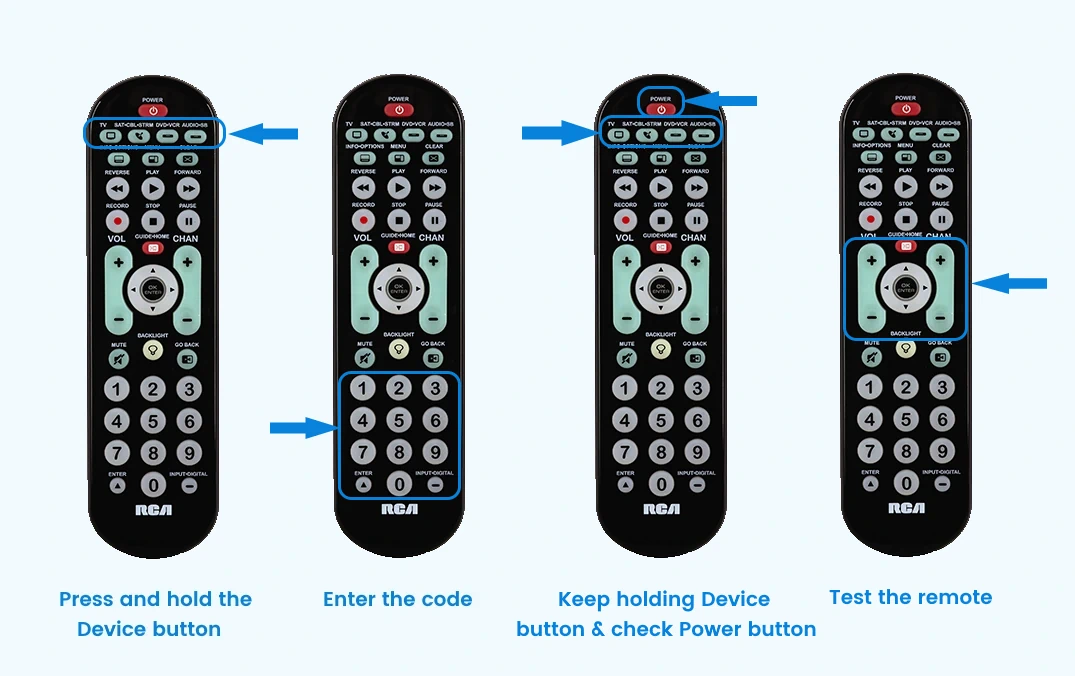
- Press and hold the device button (such as TV, DVD-VCR, SAT-CBL) on your remote. The power button will light up.
- Enter the first code with your other hand while holding the device button. The power button light will turn of after entering the code.
- While holding down the device button, if the power button turn on, you are done. If not, you have entered the wrong code, or you have missed a step in the process. Check the code and restart from step 2.
- Finally test the remote with your device. If some features don’t work, try a different code that is available for your device.
2. Auto Code Search
In auto code search, the remote automatically scans through all the codes stored in it to find the one that works for your device. While this method is a real lifesaver when you do not know the exact code, it takes a while to complete the code search and find a code that works. So let’s check how it is performed.
- Manually power on the device you wish to control with your remote.
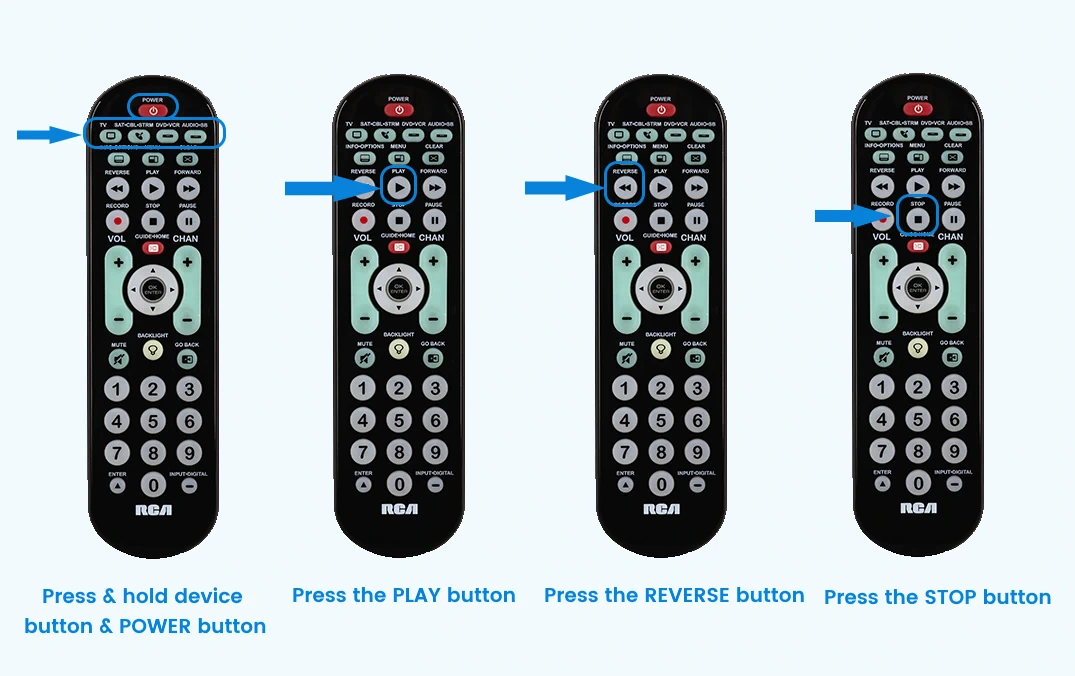
- Press and hold the device button and power button simultaneously until the power button light turns on.
- Press the PLAY button on the remote and wait for 5 seconds. The remote will send a set of 10 codes to your device to test whether they work. If your device turns off proceed to the next step. If not, press PLAY button again to send the next set of codes. Keep pressing the PLAY button every 5 seconds until your device turns off.
- Press the REVERSE button and wait for a couple of seconds when the device turns off. The remote tries the last of the previous 10 codes. If your device turns on, press the STOP button and you are done. If not, press REVERSE again and keep pressing it until your device turns on. When it does, press STOP.
3. Brand Code Search
Brand code search is another type of code search in which the remote scans the codes for the specified brand only. The brand is usually specified by entering a single digit brand code. When the code is received it scans through all the codes of that brand.
Unlike auto code search, this will save much time as there are less number of codes to scan. However, to perform a brand code search, you need to know the specific single digit code of your device brand. Here are the steps to do a brand code search.
- Power on your device.
- Find the Brand Code of your device provided at the end of this section.
- Press and hold the device button and power button simultaneously until the power button light turns on.
- Enter the single digit brand code of your device.
- Aim your remote at your device and press the POWER button and wait for 2 seconds. If your device turns off, press the STOP button to lock the code. If not, press POWER again every 2 seconds until your device turn off. When the device turn off, press the STOP button.
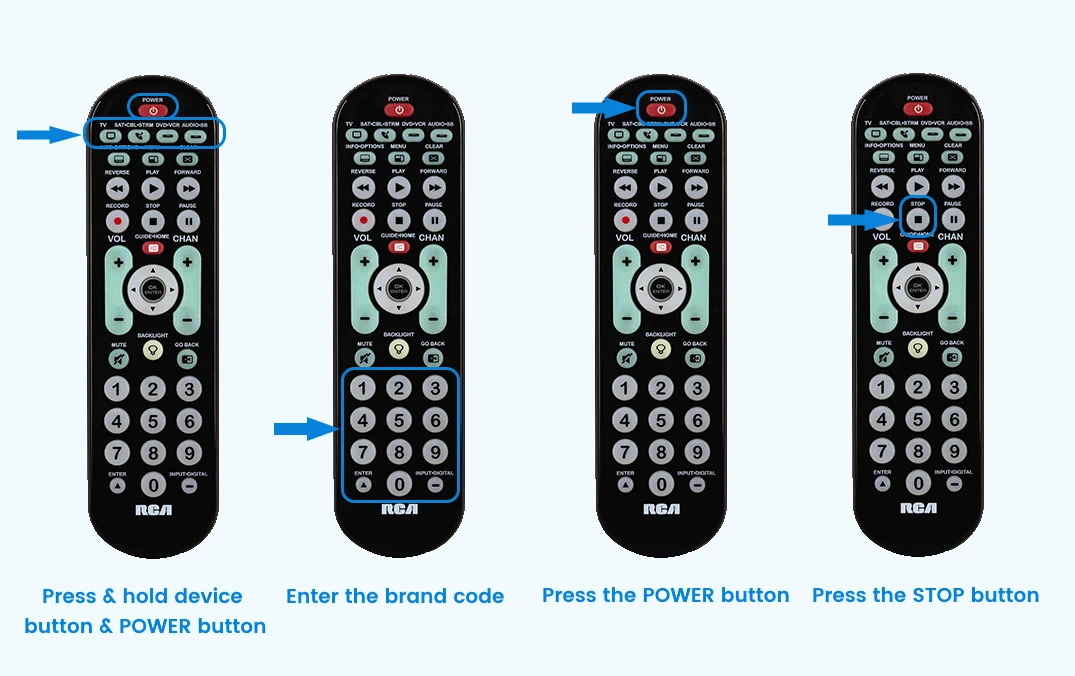
Brand Codes for TVs
| LG | Samsung | Sony | Toshiba | Vizio |
| 0 | 1 | 2 | 3 | 4 |
Brand Codes for DVD/Blu-ray
| LG | Panasonic | Samsung | Sony | Toshiba |
| 0 | 1 | 2 | 3 | 4 |
Brand Codes for SAT/Cable/Streaming
| Apple | Microsoft | Netgear | Roku | Western Digital | AT&T | Comcast | DirecTV | Dish Network | Time Warner |
| 0 | 1 | 2 | 3 | 4 | 5 | 6 | 7 | 8 | 9 |
4. Manual Code Search
The Manual Code Search lets you go one-by-one through all the codes for the device you’re trying to control. When you find the one that operates your device, you can stop the search and store that code.
- Follow the steps 1 to 4 in the auto code search method.
- Press PLAY on the remote and wait 5 seconds. The remote is testing a batch of 10 codes on your device. If your device turns off, press the STOP button to store the code. If not, press POWER again. The remote tests the next code for your device. Keep pressing POWER every 2 seconds until your device turns off. When it does, press STOP.
5. IR Learning
IR learning is an alternative programming method that allows your universal remote to copy functions from an original remote. It works by capturing and storing infrared signals, and then replicating them when needed. With this method, you can ‘teach’ your RCA remote the commands from your original device remote.
Follow the steps below to program your remote using the infrared learning method.
- Place both the remotes on a flat surface, facing each other. The original device remote’s IR LED should be 1 to 2 inches distant from the learning sensor of the universal remote.
- On the learning remote, press and hold the device key you want to program. The POWER key will turn on and stay lit. While holding the device key, press and hold the RECORD key until the POWER key turns off.
- When the POWER key turns back on and remain illuminated, release both keys. The remote is now in Learning mode.
- Press the key on the learning remote where you want to store the function. The POWER key will blink once, then remain on.
- On the original remote, press and hold the key you want to teach until the POWER key on the learning remote blinks once, then release the key. The function is now stored.
- o learn another key for the same device, repeat steps 4 and 5. To program a different device mode, repeat steps 2 to 5. To save and exit, press the SLEEP key on the learning remote.
6. Using RCA Smart Remote App
RCA’s advanced Bluetooth remotes like the universal streaming remote (Model RCTSB3B) can be programmed via the official RCA Smart Remote Application. To set up your remote using the app, follow these steps.
- Download and install the RCA Smart Remote App on your smartphone from Google Play Store.
- Go to the RCA app in your phone settings and enable “Allow to access Bluetooth“.
- Launch the app and give location permission to pair with your remote. For this, tap “Request Permission” and then tap “Allow”.
- Press and hold the rewind and fast-forward buttons on the remote simultaneously until the red LED on your remote flashes. You will now hear a beep.
- Tap “Start Pairing“. The app will now pair with your remote.
- Once paired, tap the box with text at the top of the screen to add devices.
- Tap the “Select Device Key” drop-down menu and select the device you want to control (For example, TV). When the button for your device blinks, tap “Next”.
- Tap on the “Select Device Type” drop-down, choose TV (or the other device), and tap “Next”.
- Select your TV brand from the list and tap “Next”.
- Now, aim the remote at your TV and press the power icon in the app. If your TV powers on, tap the “Yes” icon. If not, tap “No” and follow the on-screen prompts.
- Once the remote is paired, give it a name and tap “Done”.
- You can set up another device now or anytime later. To set up, tap “Yes” and follow the same process. If you are finished, tap “No” and close the app.
Setting up an RCA universal remote doesn’t have to be complicated. Start by using the direct code entry method. If you don’t have a code, try auto search, brand search, manual search, or IR learning to find one that works.
To ensure the best experience, always test multiple codes if certain features don’t work. Additionally, if your remote supports it, the RCA Smart Remote App can make programming even easier.
FAQs
To find your RCA remote control model number, you’ll need to locate a label or sticker on the back of the remote or inside the battery compartment. This label typically contains a 5 or 6-digit revision number, which is sometimes prefixed with a letter R or D.
To reset an RCA universal remote, remove the batteries, then press and hold the number 1 key on the remote for several seconds to eliminate the residual charges inside the remote. Now, release the number 1 key, reinstall the batteries, and press the ON/OFF key.