Programming a General Electric universal remote lets you consolidate the control of multiple consumer electronics devices in to a single remote. Once you program, you can easily manage a variety of functionalities across the devices such as power, input, volume control and channel navigation.
You can program a GE universal remote in three ways: by entering a code, by using ‘manual code search‘ and by ‘auto code search‘. With a code, you manually enter a 3 or 4-digit numeric code for your device where as with code search methods, you manually search for a working code or the remote automatically search for a compatible code for your device. The code search methods are real life savers especially when you do not know the exact code.
Whether you want to replace a TV remote at your home or to set up the remote for your clients, this article is for you. It walks you through detailed step-by-step instructions for all methods. Moreover, we will also show you code identification, programming favorites and master volume control.
1. Direct Code Entry
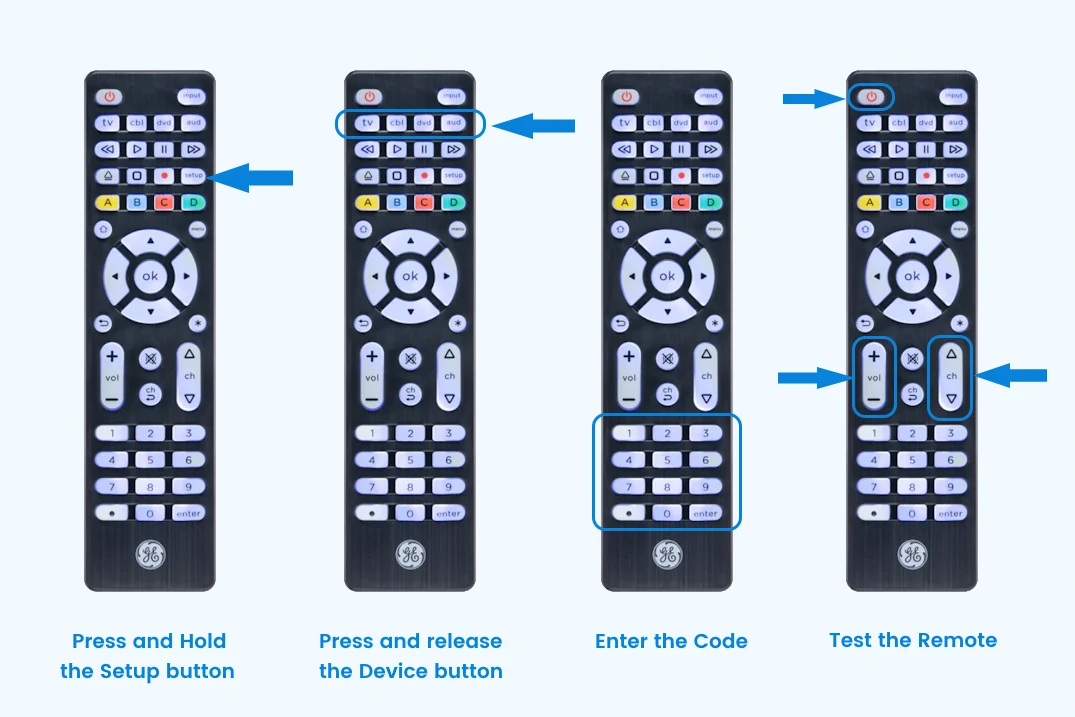
Direct code entry is the manual method of entering a code using your remote’s number keys. Before you proceed with the method, you should have a list of codes compatible with your specific device brand. You can use our code lookup tool to find the GE remote codes. Once you have a list of codes, follow the below given steps:
- Switch on the device you want to control with GE remote.
- Press and hold the Setup button until the remote’s LED lights up.
- Press the device button once (e.g. TV, DVD, SAT etc.). The LED will blink once and stay on.
- Enter a code listed for your device. If the code is accepted, the LED will turn off.
- Aim the remote at your device and test the buttons (e.g. power, volume, channel, etc.). If they don’t work, repeat the steps 2-5 with the next code for your device.
Note that some codes may control only a few device functions. To get mote functionality, try other available codes until your find the fully functional one.
2. Manual Code Search
Manual code search is a method of scanning the codes with our interaction. This is an older method and may not be available in newer models. Here is how to perform this code search.
- Turn on the device you wish to control.
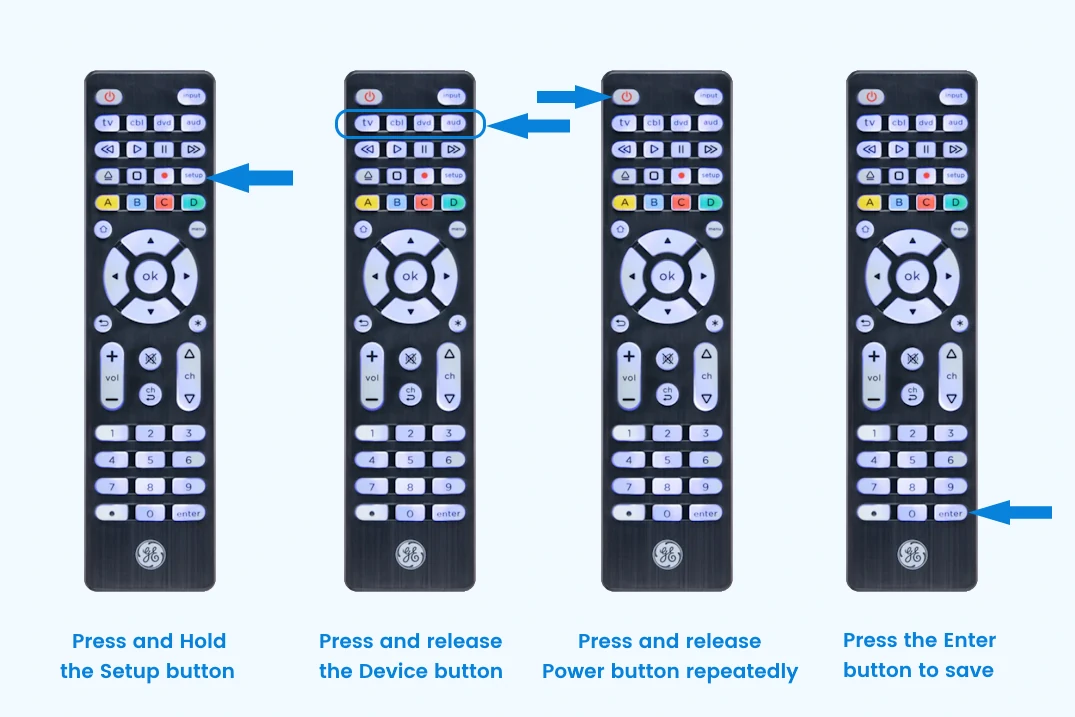
- Press and hold the Setup or Code Search button (depending on model) until the LED lights up.
- Press the device button (TV, DVD, VCR, etc.). The LED will blink once and remain on. To program the AUX button, first press the AUX and then the device button.
- Now, press and release the power button repeatedly several times until your device turn off. Give an interval of at least 2 seconds between each press. You may have to press the power button more than 200 times.
- Once your device turned off press the Enter or Save button to store the code. The LED will now turn off. Test other buttons to check the functionality.
3. Auto Code Search
In auto code search, you can search through all the codes stored in the remote to find the one which works for your particular device.
Below given are the steps to do the auto code search.
- Power on your device.
- Press and hold the Setup button until the LED turns on.
- Press the device button. The LED will blink once and stay on.
- Press the Power or Play button (depending on model). The remote will send 10 codes and check if any one of it work.
- When the device turns off, turn it on manually.
- Press the Vol+ button cycle through the codes. Give a time interval of 3 seconds before the next press. Repeat until the device turns off. Once the device turns off, press the device button again to store the code.
- Test the buttons of the remote. If everything works as expected, you are done. If not repeat the search.
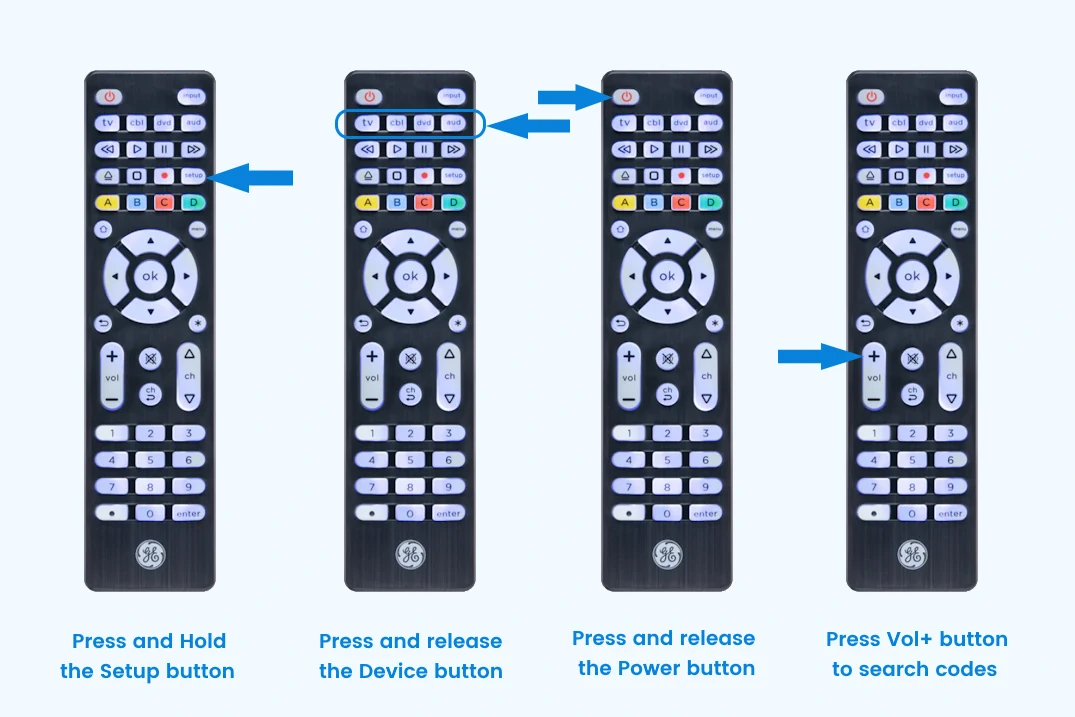
Now that your remote is programmed automatically, do you know which code worked? Well, there is a simple process to find it.
How to Identify the Code?
The code identification process helps you find out which code worked for your device when programmed via manual or auto code search method.
To identify the code, follow the steps below:
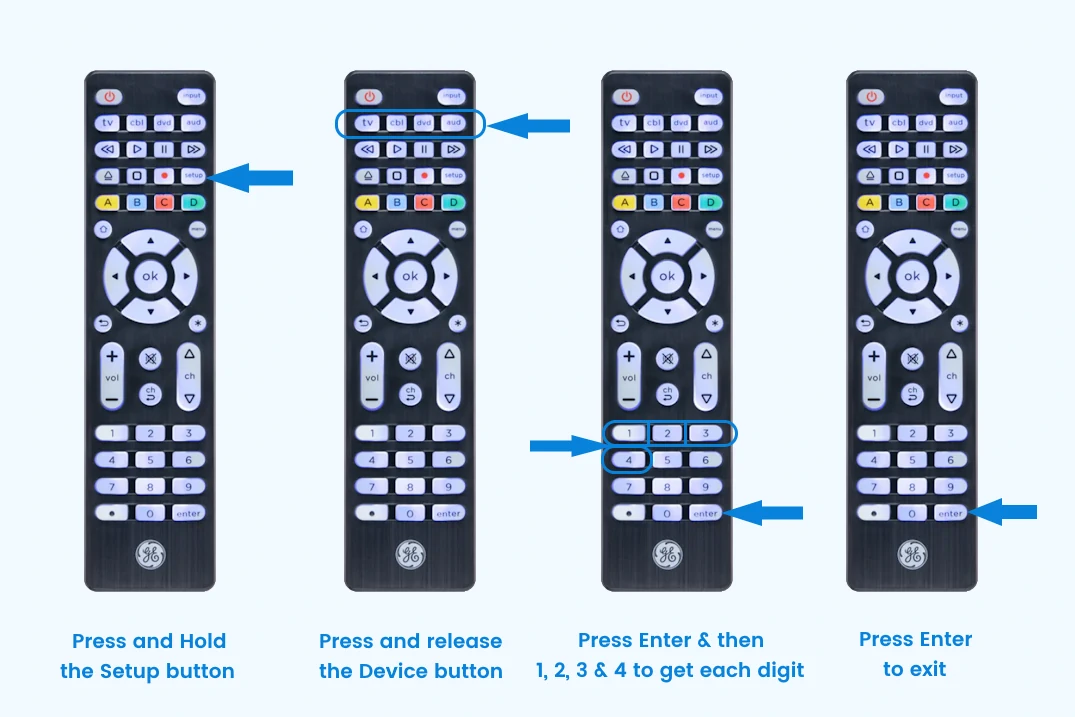
- Hold the Setup button until the LED turns on.
- Press the device button from which you need to retrieve the code. The LED will blink and remain on.
- Retrieve the code digits:
- For newer remotes: Press Enter, then press 1, 2, 3, and 4 to get each digit. The LED will flash the corresponding number of times for each digit.
- For older models: Press each number (0-9). The number that causes the LED to blink is the code digit. Repeat for all four digits. After the fourth digit, the LED will turn off.
- Press Enter to exit.
Programming Combo Devices
Some combo devices such as TV/VCR, TV/DVD requires a separate mode button for each part of the combo device.
For example, if you have a TV/VCR combo, you will need to program a TV code in the TV button as well as a DVD code in the DVD button to operate each component.
Programming Favorite Channels
The favorites functions allows you to program up to 10 channels for quick access. Here is how to program favorite channels.
How to Set up Favorites?
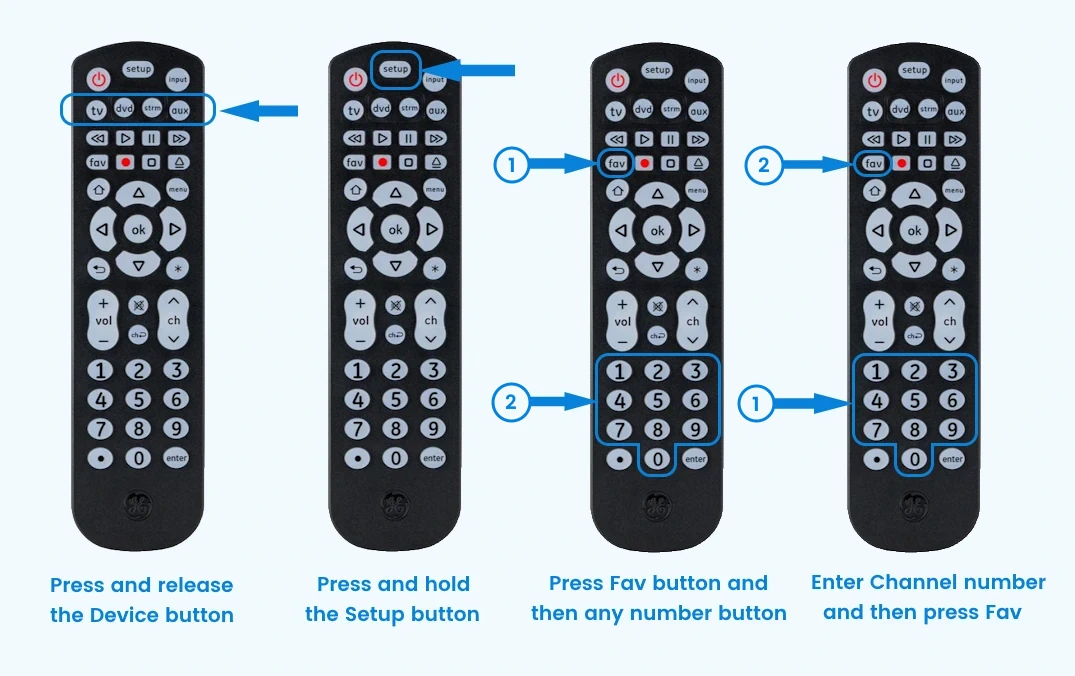
- Press the device button corresponding to TV or cable box.
- Press and hold the Setup button until the LED turns on.
- Press FAV button. The LED will blink once and turn on.
- Press the number button (0-9) in which you want to save your favorite channel.
- Enter the channel number you wish to save (e.g. 5, 50, 10.1, 15.2 etc.).
- Press the FAV button again and your favorite channel will be saved.
- Repeat the process for up to 10 favorite channels of yours.
How to Use Favorites?
- First, press and release the FAV button. The LED will turn on.
- Press and release the programmed button for your favorite channel (0-9). The LED will blink twice and the remote will send the code for your programmed channel.
Programming Master Volume Control
The master volume control feature lets you select and audio device to control the volume irrespective of the device you are currently operating. Let us see how you can enable and disable this feature.
How to Enable Master Volume Control?
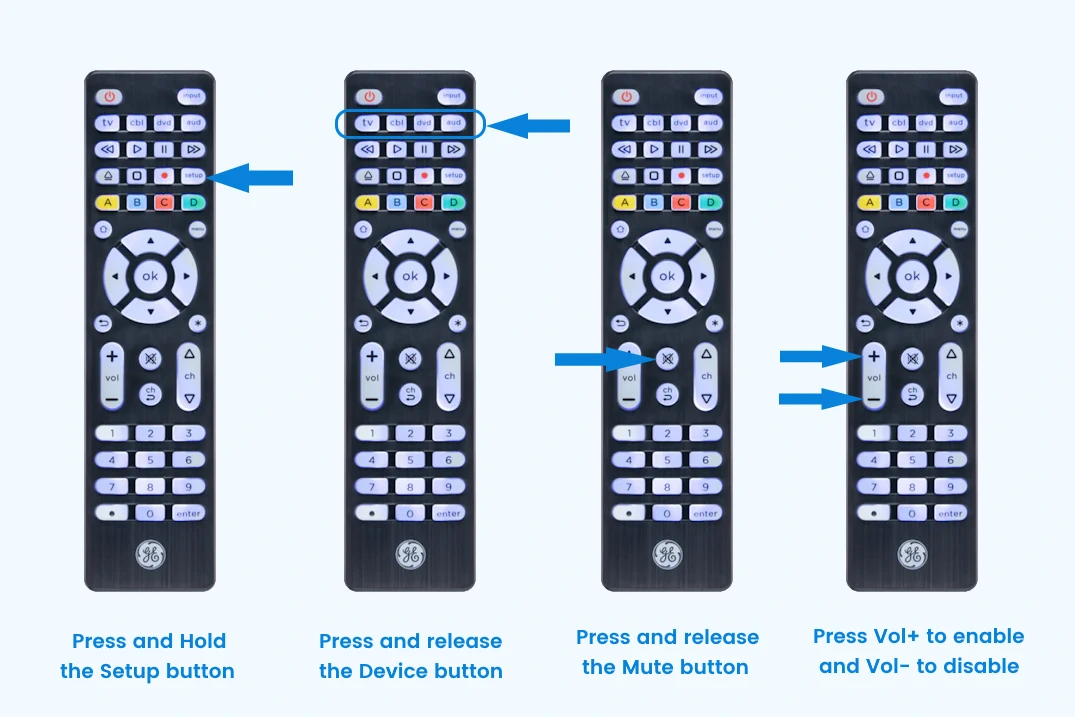
- Press and hold the Setup button until the LED turns on.
- Press the device button for the audio device you want to use.
- Press the Mute button.
- Press the Vol+ button. The LED will blink twice and turn off.
How to Disable Master Volume Control?
- Press and hold the Setup button until the red light remains on.
- Press the device button programmed for master volume control.
- Press the Mute button.
- Press the Vol- button. The LED will blink twice and turn off.
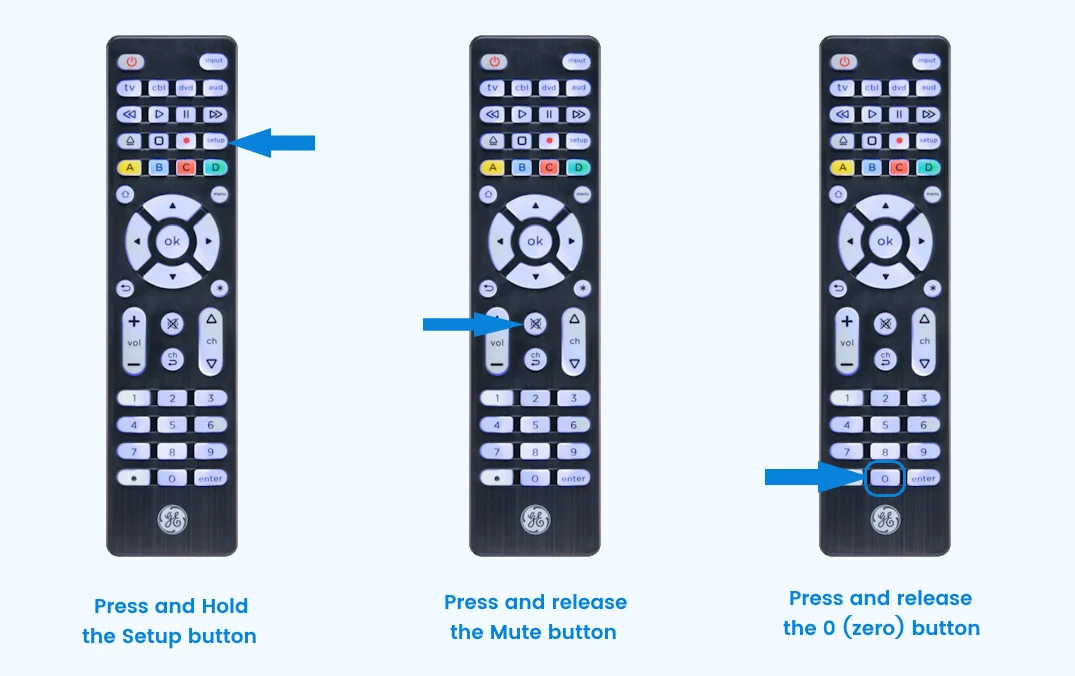
Resetting to Factory Settings
- Press and hold the Setup button until the LED turns on.
- Press and release the Mute button.
- Press and release the 0 (Zero) button. The LED will blink twice.
FAQs
No, GE, Philips, and UltraPro universal remotes do not work with RF-based devices like the Roku Streaming Stick or Amazon Firestick. However, they are pre-programmed to control IR-based streaming devices such as Roku media boxes.
Yes, you can control combo devices like TV/DVD or TV/VCR, but you will need to program the remote separately for each function. For example, you can set up one code to control the TV and another to control the DVD player.
Yes, most GE universal remotes, including the 4-device, 6-device, and 8-device models, have a dedicated “dot (•)” or “dash (-)” button for easy access to sub-channels (digital channels), such as 5.2 or 6.1, which are commonly found on DVRs and set-top boxes.
The multi-colored ABCD buttons are non-programmable buttons that perform different functions depending on the device being controlled. On GE, Philips, and UltraPro remotes, they are typically used for advanced DVR functions or for operating a cable or satellite set-top box. Their functionality depends on the DVR or set-top box programmed to your remote.
To program a GE remote without a “Setup” button, use the “Code Search” button instead. The rest of the steps remain the same.
The issue may be due to the remote using shift mode. To fix this, press and release the shift/setup button, then use the arrow buttons while the red light blinks. If this doesn’t work or your remote lacks a shift function, try reprogramming the remote with a different device code. For more details on shift mode, refer to the GE instruction manual for your specific model.
Yes, you can still use the original remote along with your GE remote. Programming a device into the universal remote does not affect the functionality of the device’s original remote.
No, you don’t need to reprogram your GE remote after swapping batteries. The built-in code saver retains the programmed codes for up to 10 minutes, giving you enough time to replace the batteries.
To reset your remote, press and hold the Setup button until the light turns on. Then, press the mute button and then press 0 (zero). This will restore your remote to its factory settings, ensuring it works smoothly.