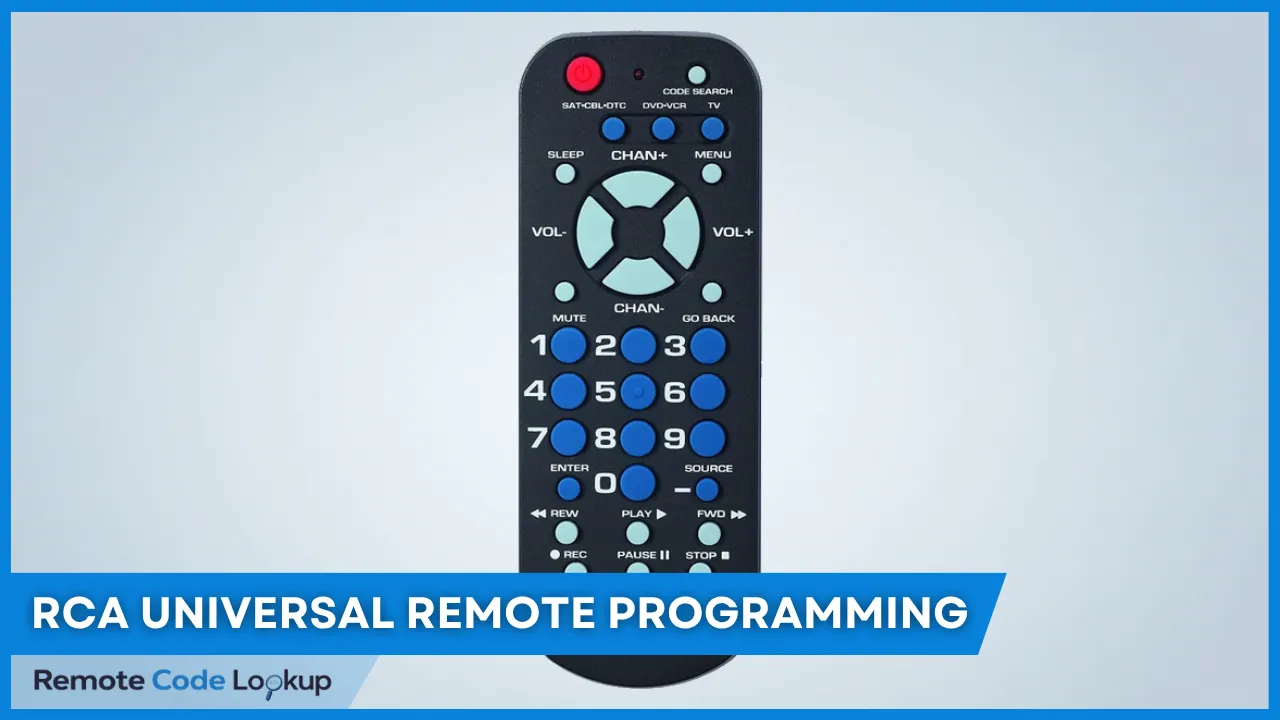
To program an RCA universal remote without entering device codes, use methods such as Auto Code Search, Brand Code Search, Manual Code Search, infrared (IR) learning, or the RCA Smart Remote app. These methods are alternatives to manually entering remote codes, and their availability depends on your remote model, its programming features, and whether you have the original device remote.
Auto Code Search, Brand Code Search, and Manual Code Search let you find a working remote code without entering it directly. Brand Code Search narrows the search to codes associated with the device’s brand. For Auto Code Search and Manual Code Search, the programming instructions differ between remotes with and without a CODE SEARCH button.
After using a code search method, you can retrieve the programmed codes for reprogramming your remote in future. If you have the original remote, IR learning offers another way to configure a compatible universal remote by transferring commands without entering numerical device codes.
Some RCA remote models also support programming through the RCA Smart Remote app. This option requires a compatible remote, which you need to pair with your smartphone before configuring the devices you want to control.
Method 1: Auto Code Search
Auto Code Search automatically searches through the codes available for the device you want to control and tests them against the device. When the remote finds a code that allows it to control the device correctly, you can stop the search and save that code to the remote. The steps for performing Auto Code Search differ between RCA remotes that have a Code Search or Setup button and those without a Code Search button.
How to Perform Auto Code Search If Your Remote Has a Code Search Button?
To perform Auto Code Search on RCA remotes with a CODE SEARCH button, follow these steps:
- Turn on the device you want to control with the remote.
- Press and hold the CODE SEARCH button until the LED illuminates, then release the button.
- Press and release the corresponding device button (TV, DVD, CABLE, etc.). The LED blinks once and then remains lit.
- Aim the remote at the device and press the ON/OFF button once. The remote automatically sends codes for the selected device, one at a time. Keep the remote aimed at the device throughout the search.
- Press the ENTER button within 2–3 seconds after your device turns off to save the code. The remote will send the next code, and you will need to restart the search from step 2 if you do not press ENTER immediately.
- Repeat the process for each device you want to control, selecting the corresponding device button in step 3.
Watch the video below for a better understanding of how to perform Auto Code Search on RCA remotes with a CODE SEARCH button.
How to Perform Auto Code Search If Your Remote Does Not Have a Code Search Button?
To perform Auto Code Search on RCA remotes without a CODE SEARCH button, follow these steps:
- Turn on the device you want to control with the remote.
- Press and hold the corresponding device button (TV, VCR, DVD, etc.) that you want to program. The POWER button turns on and stays lit.
- Press and hold the POWER button while holding the device button. The POWER button turns off.
- Release both buttons once the POWER button turns on and stays lit.
- Press and release the ▶ (Play) button, then wait 5 seconds to see whether the device turns off. Press and release the ▶ (Play) button again and wait another 5 seconds if the device remains on. Repeat this process until the device turns off. Each time you press the ▶ (Play) button, the POWER button blinks as the remote sends a batch of 10 codes to the device.
- Press and release the ◀◀ (Skip Backward) button, then wait 2 seconds to see whether the device turns on. This is because, when the device turns off, the correct code is among the last batch of 10 codes sent. Press and release the ◀◀ (Skip Backward) button again and wait another 2 seconds if the device remains off. Repeat this process until the device turns on. Each time you press the ◀◀ (Skip Backward) button, the POWER button blinks as the remote narrows down the search to identify the correct code.
- Press and release the ■ (Stop) button to save the code once the device turns on. The POWER button turns off.
Notes:
- In step 5, the POWER button blinks four times, and the Auto Code Search procedure ends if the remote searches through all available codes without finding a match.
- In step 6, press and release the ▶▶ (Skip Forward) button, then wait 2 seconds to see whether the device turns off again, if you accidentally press the ◀◀ (Skip Back) button after the device turns on.
- On certain models, such as the RCR6473E and RCRN06GBE, press SLOW instead of ▶ (Play) in step 5 and OK/ENTER instead of ■ (Stop) in step 7.
Watch the video below for a better understanding of how to perform Auto Code Search on RCA remotes without a CODE SEARCH button.
Method 2: Brand Code Search
The Brand Code Search searches only the codes assigned to the brands listed in tables below. If your device’s brand is listed, this method can make programming your remote quick and easy.
Brand Code Search can be used to program the remote for TVs, VCRs, DVD players, satellite receivers, cable boxes, and audio devices. It cannot be used to program the remote for DVRs or digital TV converter boxes. For these devices, use a different programming method.
To perform Brand Code Search on RCA universal remotes, follow these steps:
- Turn on the device you want to control with the remote.
- Press and hold the device button (TV, DVD, SAT, etc.) until the POWER button lights up and stays on, then release the button.
- Enter the brand code (not the device code) for your device type (e.g. 11111 for TV – See the brand code list provided below). The POWER button will blink after entering the first four digits and turn off after the fifth digit.
- Press and hold the device button again until the POWER button lights up and stays on, then release it.
- Press the POWER button to start searching the code for your specified device type.
- Press the ■ (Stop) button to save the code when your device turns off. Press the ▶ (Play) button to go back through the last few codes if you missed pressing the Stop button. Then, press the Stop button again when your device turns back on.
- Test the remote and make sure all the buttons work. Repeat the process from step 4 to find a better code.
Notes:
- For some models, such as RCRN06GBE, RCR6473E, etc. use the SKIP FWD button instead of the POWER button. Also, they have single-digit brand codes.
- For single-digit brand codes, press the 0 button first (for example, 0-2 for 2).
- To exit without saving a new code at any point in the Brand Code Search, press the EXIT button.
| Brand Code | Device Type |
|---|---|
| 11111 | TV |
| 22222 | VCR |
| 33333 | Streaming Player |
| 44444 | SAT/Cable/DTV |
| 55555 | DVD/Blu-Ray |
| 88888 | Projector |
| 66666 | Audio/AMP |
| 66664 | Soundbar |
Method 3: Manual Code Search
The Manual Code Search cycles through the available codes for the type of device you want to control, one code at a time. When you find a code that operates your device correctly, stop the search and save the code to the remote.
How to Perform Manual Code Search If Your Remote Has a Code Search Button?
To perform Manual Code Search on RCA universal remotes with a CODE SEARCH button, use the following steps:
- Turn on the device you want to control with your remote.
- Press the CODE SEARCH button until the remote’s LED turns on, then release.
- Press and release the device button (TV, DVD, CABLE, etc.). For programming the AUX button, press and release the AUX button first and then press the device button to program.
- Press the ON/OFF button repeatedly every 2 seconds until the device turns off. Since the code search is manual, you will have to do this a few hundred times.
- Press and release the ENTER button immediately after the device turns off.
- Test common buttons on the remote, such as VOLUME UP/DOWN and CHANNEL UP/DOWN, to make sure they work correctly. Repeat steps 1–5 to find another code if the buttons do not function as expected.
Note: For older remote models, such as the Systemlink4+, Systemlink5+, RCU400, and RCU500, press and hold the CODE SEARCH button during step 2, and do not release it until you have completed step 3. Then continue with the remaining steps as instructed.
How to Perform Manual Code Search If Your Remote Does Not Have a Code Search Button?
To perform Manual Code Search on RCA universal remotes without a CODE SEARCH button, follow the steps below:
- Turn on the device you want to control.
- Press and hold the device button (TV, DVD, VCR, etc.). The POWER button or the indicator LED (depending on the remote model) will turn on and stay lit.
- Press and hold the POWER or ON/OFF button while holding the device button. The POWER button’s light or the LED turns off.
- Release both buttons when the POWER button’s light or the LED turns back on. The POWER button or the LED remains on.
- Press and release the POWER button (or ON/OFF button) repeatedly, waiting 2 seconds after each press, until your device turns off. The illuminated POWER button blinks each time you press it, indicating that the next code in the list has been sent. When your device turns off, you have found the correct code.
- Press and release the STOP (■) button to save the code once you find the one that turns off your device.
How to Retrieve Codes Stored in the Remote After Using Code Search Methods?
To retrieve (identify) the codes stored in your remote for each device after using any of the three Code Search methods described above, follow the steps below.
Recording the codes saves time when you need to reprogram your remote, such as after a reset. You can use the Direct Code Entry method to reprogram the remote with the recorded codes instead of repeating the code search process.
For remotes with CODE SEARCH button:
- Press and hold the CODE SEARCH button until the indicator LED turns on, then release the button.
- Press and release the button for the device whose code you want to retrieve. The LED blinks once and remains on.
- Press and release the CODE SEARCH button. The LED turns off.
- Press and release each number button in sequence, starting with 0 and ending with 9, until the indicator LED blinks. The number button that triggers the blink identifies the first digit of the code.
- Repeat Step 4 to identify each remaining digit of the code.
For remotes without CODE SEARCH button:
- Press and hold the device button until the ON/OFF or POWER button (depending on your remote model) lights up and stays on.
- Press and hold the INFO button (or INFO•OPTIONS or INFO, or P depending on your model) while holding the device button. The ON/OFF button will turn off.
- Release both buttons when the ON/OFF button turns back on.
- Press and release each number button, starting with 1 and proceeding in order through 9, then 0. The number that causes the ON/OFF or POWER button to blink identifies the first digit of the code.
- Repeat Step 4 until you retrieve all digits of the code. After you retrieve the last digit, the ON/OFF button blinks briefly and then turns off.
Notes:
- TV codes begin with 1, VCR codes with 2, DVD codes with 3, Audio codes with 4, and satellite receiver and cable box codes with 5.
- Press and release the GO BACK or EXIT button at any time to exit the code retrieval mode.
Method 4: Programming Via Infrared (IR) Learning
Infrared learning is another way to program a universal remote, including RCA remotes, without entering numerical device codes. This method requires the original remote, which transmits infrared signals that the universal remote captures and stores to reproduce the original remote’s commands.
To program your universal remote using infrared learning, follow the steps below:
- Place both remotes on a flat surface, facing each other, with the original remote’s infrared (IR) LED 1 to 2 inches from the universal remote’s learning sensor.
- Press and hold the device button you want to program on the universal remote until the POWER button lights up and stays lit. Press and hold the RECORD button while continuing to hold the device button, until the POWER button turns off.
- Release both buttons when the POWER button turns back on and remains illuminated. The remote is now in learning mode.
- Press the button on the learning remote where you want to store the function. The POWER button blinks once and then remains on.
- Press and hold the button on the original remote that you want to teach until the POWER button on the learning remote blinks once, then release the button. The function is now stored.
- Repeat Steps 4 and 5 to teach another button for the same device. Repeat Steps 2 through 5 to program a different device mode. Press the SLEEP button on the learning remote to save the learned functions and exit learning mode.
Note: If the POWER button blinks four times, an error has occurred. Adjust the distance between the remotes and repeat Step 4.
Method 5: Programming Using RCA Smart Remote App
Using RCA Smart Remote App is another method to program an RCA universal remote without using device codes. This method is only supported by a few remote models such as RCTSB3B and CRCTSB3B.
To set up your RCA remote using the app, follow these steps:
- Download and install the RCA Smart Remote app on your smartphone from the Google Play Store.
- Open your phone’s settings, find the RCA app, and enable Allow to access Bluetooth.
- Launch the app and grant location permission to pair with your remote. Tap Request Permission, then tap Allow.
- Press and hold the Rewind and Fast-Forward buttons on the remote simultaneously until the red LED flashes. You will then hear a beep.
- Tap Start Pairing in the app to pair your remote with your smartphone.
- Tap the text box at the top of the screen to add a device.
- Open the Select Device Key drop-down menu and select the device button you want to configure, such as TV. When the selected device button blinks on the remote, tap Next.
- Open the Select Device Type drop-down menu, select TV or the appropriate device type, and tap Next.
- Select your device’s brand from the list and tap Next.
- Point the remote at your device and tap the power icon in the app to test the connection. If the device turns on, tap Yes. If it does not, tap No and follow the on-screen instructions.
- Enter a name for the device and tap Done to complete the setup.
- Tap Yes to set up another device and repeat the process, or tap No if you have finished setting up your devices, then close the app.
Watch the video below for a better understanding of how to set up your remote using the RCA Smart Remote App.
How Do You Program an RCA Universal Remote With Codes?
If none of the methods described above works, use our code lookup tool to find the RCA universal remote codes for your device, then follow our step by step instructions to program your remote using the Direct Code Entry method.