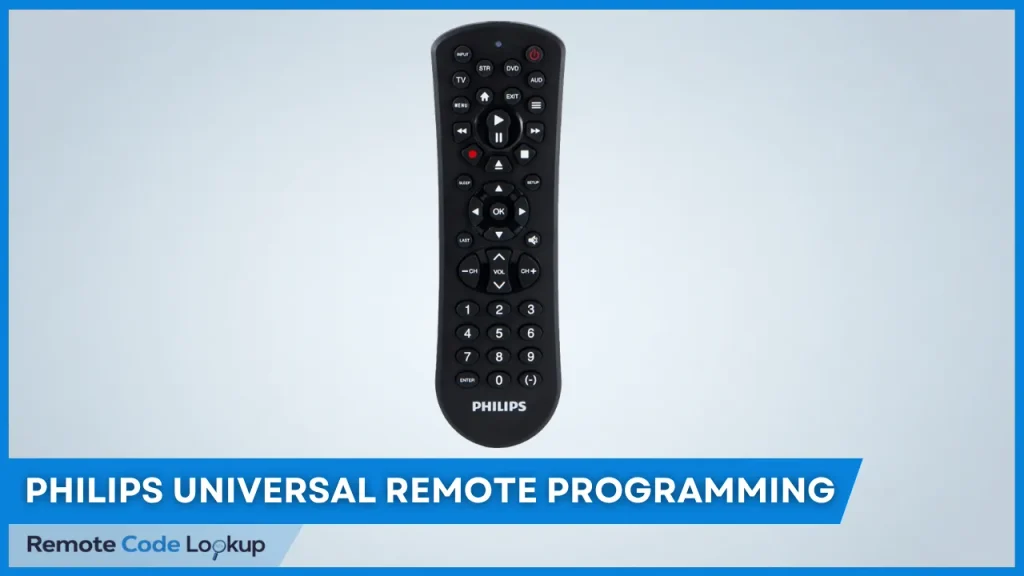
To program a Philips universal remote without codes, use Auto Code Search, Brand Code Search, or Infrared (IR) Code Learning, depending on your remote model and its supported features.
Auto Code Search scans the remote’s code library automatically, Brand Code Search narrows the search using preset brand codes, and IR Code Learning copies commands from an original device remote.
This guide provides step by step instructions for programming older Philips remotes and newer Philips remotes manufactured by Jasco, including how to identify working codes and troubleshoot learning errors.
Method 1: Auto Code Search
Auto Code Search method lets you automatically search through your remote’s built-in code library to find the one that works for your device. To perform Auto Code Search on your remote, use the following steps:
For Newer Philips Remotes (Manufactured by Jasco):
- Turn on the device you want to control with your remote.
- Press and hold the SETUP button until the remote’s LED turns on.
- Press and release the required device button (TV, DVD, AUD, etc.). The LED will blink once.
- Press and release the POWER button on your remote once. This will send infrared codes in batches of 10 codes. The LED will blink once for each code sent and stays on after ending 10 codes. Repeat this step until your device turns off.
- Turn on your device back manually.
- Press and release the VOL+ button until the device turns off. The remote will now resend the last 10 codes one by one. Wait for about 3 seconds between each button press.
- Press and release the same device button you pressed in step 3 when your device turns off, to save the code.
- Repeat the process selecting the appropriate device button for each device you want to control.
Notes:
- To go backward through each batch of 10 codes, press the VOL- button.
- Repeat the whole process to search for a better code if the saved code does not work correctly or work partially.
To better understand the programming steps, watch the video below:
For Older Philips Remotes (Manufactured by Philips):
- Switch on the device you want to control with your remote.
- Press and hold the device button (TV, DVD, etc.) for 5 seconds until the remote’s indicator LED turns on.
- Press and release the Standby button to begin the code search. Every 2 seconds a different infrared signal is sent which is indicated by an LED blink.
- Press and release the OK button immediately when the device turns off to save the code. The LED will now turn off. In case you missed to press the OK button, turn on your device and begin a reverse code search by pressing and releasing the Standby button again.
- Test the buttons of your remote and verify the device responds correctly.
To understand the steps better, watch the video tutorial below:
Method 2: Brand Code Search
Brand Code Search methods allow you to search the codes by brand with preset 4-digit brand codes. This narrows down the code search to search codes for the brand specified by you with the brand code.
To program your Philips universal remote using Brand Code Search, follow the steps below:
For Newer Philips Remotes:
- Switch on the device you want to control with your remote.
- Press and hold the device button (such as TV, SAT, DVR, etc.) until the remote’s LED turns on.
- Look up the 4-digit brand code for your device’s brand from the code lookup tool provided above (select “Brand Codes” from the first dropdown list).
- Enter the brand code using the number buttons of your remote. Use 9999 if your brand is not listed in the tool.
- Press and hold the Standby button on your remote and release it immediately when your device turns off. This usually takes about 5-60 seconds and if you enter 9999, it can take longer to find your code.
- Switch on the device and test the buttons of your remote.
Note: For single device remotes such as the SRU5110, press and hold the Setup button instead of the device button in step 2.
For Older Philips Remotes:
- Turn on the device you want to control.
- Press and hold the SETUP button until the remote’s LED turns on.
- Press and release the required device button. The LED will blink once.
- Press and release the digit button (0-9) corresponding to your brand listed in the table given below. The LED will blink once.
- Press the CH+ button (or POWER or PLAY for a DVR) until the device channel changes or a DVR starts playing. The LED will blink for each button press.
- Press and release the MUTE button to save the code.
Notes:
- For remotes (such as SRU4105 and SRU4106) that do not have separate device buttons, press the Select button repeatedly in step 3 to select the required device mode (TV, DVD, SAT, etc.). Skip this step for single device remotes.
- To go backward through the code library in step 5, press the CH- button until the device changes channel.
Method 3: Infrared (IR) Code Learning
Infrared Code Learning is the method of programming by copying the required command to your universal remote from an original device remote. To learn infrared codes on your Philips universal remote, follow the steps below.
For Newer Philips Remotes:
- Turn on the device you want to control.
- Press and hold the device button (TV, DVD, etc.) until your remote’s LED turns on.
- Enter the learning code – 99900 to activate the learning mode. The LED will blink once and stay on.
- Place the universal remote and the original device remote on a flat surface, aiming each other at a distance of 3-5 inches apart.
- Press and release a programmable button on your universal remote in which you want to learn the new command. The LED will blink twice and then remain on.
- Press and hold the key on the original remote whose command you want to copy to the universal remote. Release the key when the universal remote’s LED blinks once and remains illuminated, indicating that the command has been learned successfully. Repeat Step 6 after adjusting the position of both remote controls if the LED blinks six times rapidly, indicating a learning error.
- Repeat Step 5 to 6 to learn the functions of other buttons, or press the same device button used in Step 2 to exit learning mode.
Note: Each button holds only one command, learning a new command will replace the previous one.
For Older Philips Remotes:
- Turn on the device you want to operate.
- Press and hold the SETUP button until the remote’s LED turns on.
- Press and release the required device button. The LED will blink and stay on.
- Press and release the LEARN button. The LED will blink and remain on.
- Place both the remotes facing each other by approximately 1 inch apart.
- Press and release the button on the universal remote that you want to learn a new function.
- Press and hold the button on the original remote from which you want to learn the command until the LED blinks once and remain on. Repeat Steps 6 to 7 if the LED blinks for three seconds and then remains on, indicating a learning error.
- Repeat Step 6 to 7 to learn other buttons.
- Press and release the SETUP button when all the required commands have been learned.
How Do You Program a Philips Universal Remote With Codes?
If none of the above methods works, use our code lookup tool to find the Philips universal remote codes for your device, then follow our step by step instructions to program your remote using the Direct Code Entry method.