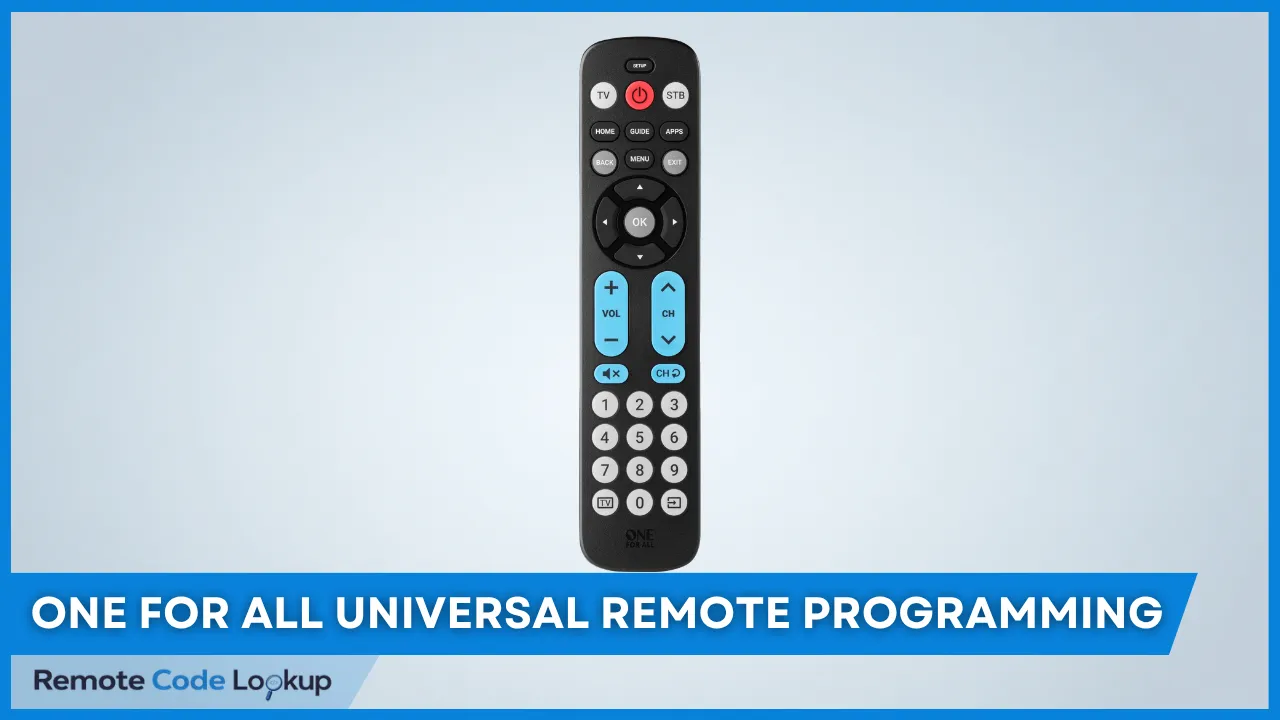
To program a One For All (OFA) universal remote without codes, use On-Remote Programming methods such as SimpleSet, Auto Search, Manual Search, or Infrared Learning, or program the remote using the One For All Advanced app. These methods are alternatives to the standard Set Up by Code method, allowing you to configure your remote without manually entering device codes. However, not all methods or app-based programming options are supported by every One For All remote model. The available options depend on your specific remote model.
One For All remotes offer several flexible, code-free setup choices depending on your specific model series. You can use SimpleSet for a quick setup using single-digit brand codes, Auto Search to have the remote cycle through its internal code library automatically, or Manual Search to step through the entire codes list sequentially. For copying custom functions, Infrared Learning lets you learn signals directly from an original remote. Alternatively, compatible Smart Control remotes support Bluetooth configuration via the OFA Advanced App, giving you app-based programming option.
The steps for each programming method vary slightly depending on the remote model. This article explains each method clearly, with step-by-step instructions for all major OFA remote models to help you program your remote without codes.
Method 1: SimpleSet
SimpleSet is a quick 3-step setup method on One For All universal remotes that lets you program your remote to control devices such as a TV, streaming box, or sound bar in under a minute per device without manually entering the device codes. The method uses predefined digits assigned to popular brands for each device type to identify the correct brand and program the remote automatically.
To program your One For All universal remote using the SimpleSet method, follow the steps provided below for your specific remote model.
- Turn on your device.
- Press and hold the MAGIC button until the LED under the current mode lights up.
- Press the DEVICES or MODE button repeatedly until the LED for your device turns on.
- Press and hold the single-digit number for your device brand and release it immediately when your device turns off. The LED will blink twice and turn off.
If any button did not work correctly, repeat the process and the remote will then start the search with the next code in the memory.
The table below shows the 8 different modes on the remote and the type of devices that can be set up in that mode.
| Mode | Type of Device |
| TV | TV, HDTV, LED, LCD, Plasma, Projector |
| STB | Set Top Box, Satellite Receiver, Cable Converter, Freeview, DVB-T, IPTV |
| BLU | Blu-ray, DVD, DVD Home Cinema, VCR, Laser Disk |
| AUD | Audio, AV Receiver, Amplifier, Tuner |
| DVD | DVD, DVD Home Cinema, Blu-ray, VCR, Laser Disk |
| GAME | Game Console (IR only), Digital Media Receiver, Streamer |
| MEDIA | Digital Media Receiver, Streamer, Game Console (IR only) |
| S BAR | Sound Bar, Active Speaker System |
The tables below show the list of brands and their pre-assigned numbers for different regional remote models.
For International (INT) Models:
| Digit | TV | DVD, BLU | STB | GAME/MEDIA | AUD | S BAR |
| 1 | Alba, Bush, Goodmans | Denon, Harman, Kardon | BSkyB, Sky Ireland, Orange | Apple | Denon | Bose |
| 2 | Grundig | JVC | Canal+, CanalSat, Digital+ | Asus | Harman, Kardon, JBL | Canton, Denon |
| 3 | LG | LG | Dream Multimedia, TechniSat | Dune, Iomega | JVC, Kenwood, LG | Harman, Kardon, JBL |
| 4 | Panasonic | Panasonic | DStv, Multichoice, Foxtel, Sky New Zealand | Emtec, A.C.Ryan, Fantec, iconBIT, iNext | Marantz, Philips or Onkyo | LG |
| 5 | Philips | Philips | freebox, Tricolor TV, Vu+ | Microsoft | NAD or Onkyo or Panasonic, Technics | Maxell, Onkyo |
| 6 | Samsung | Pioneer | Humax | Popcorn Hour, Philips, Xtreamer | Onkyo or Panasonic, Technics or Philips, Marantz | Panasonic, Philips |
| 7 | Sharp | Samsung | Samsung | Roku, Mede8er, Sky UK, Ireland, Austria, Deutschland | Panasonic, Technics or Pioneer | Samsung |
| 8 | Sony | Sony | Sky Italia, SFR, Neuf TV | Sony (Logitech, OneForAll, RE-BL, WB Electronics) | Pioneer or Samsung | Sony |
| 9 | TCL, Thomson | Toshiba | Sky Deutschland, Österreich, T-Home, Deutsche Telekom | Sumvision, Cyclone, Poppstar | Sony | Teufel |
| 0 | Toshiba | Yamaha | UPC, Cablecom, UPC Direct, Virgin Media | Western Digital, DVICO | Yamaha | Yamaha |
For US Models:
| Digit | TV | DVD, BLU | STB | GAME/MEDIA | AUD | S BAR |
| 1 | Hisense | Insignia | AT&T, DIRECTV, Sky Mexico | Apple | Bose | Bose |
| 2 | LG | LG | Bell, Bell MTS | D-Link | Denon | JBL, ZVOX |
| 3 | Panasonic | Panasonic | Charter, Spectrum, Time Warner Cable, Bright House Networks | Microsoft | Harman, Kardon | LG |
| 4 | Philips, Magnavox | Philips, Magnavox | Comcast, Xfinity | Netgear | Marantz, Philips | Panasonic |
| 5 | Samsung | Pioneer | Cox Communications | NVIDIA | Onkyo, Integra | Philips, Magnavox |
| 6 | Sharp | Samsung | DISH Network, Dish Mexico | Roku | Pioneer | Sonos, RCA |
| 7 | Sony | Sharp | Optimum, Suddenlink | Sling Media | RCA | Samsung |
| 8 | TCL, RCA | Sony | Shaw, Shaw Direct | TiVo | Samsung | Sony |
| 9 | Toshiba | Toshiba | TiVo | Western Digital | Sony | VIZIO |
| 0 | VIZIO | Yamaha | Verizon, Frontier | Xiaomi | Yamaha | Yamaha |
A country switch is located inside the battery compartment. Set it to GB if you live in the UK or Ireland, or INT if you live in an unsupported country, such as Australia. Supported countries include Great Britain, Ireland, Germany, France, Spain, and Italy. Insert the batteries to activate the selected region.
- Turn on the device you want to control.
- Press and hold simultaneously the Red and Blue buttons for TV or Green and Yellow buttons for SAT/Cable/Set-Top-Box until the LED will blink twice.
- Press and hold the digit button assigned to your device brand (see the tables below) until the device turns off. This may take up to 40 seconds.
- Release the digit button immediately when your device turns off.
The code tables below are for Great Britain/Ireland (GB) and International (INT). For Germany, France, Spain, and Italy, refer to your user manual.
For Great Britain/Ireland Models:
| Digit | TV | Sat, Cable, STB, Freeview and all Sky |
|---|---|---|
| 1 | Bush | Amstrad |
| 2 | Goodman | BT Vision |
| 3 | Hitachi | Bush/Goodman |
| 4 | LG | Humax |
| 5 | Panasonic | Pace |
| 6 | Philips | Philips |
| 7 | Samsung | Samsung |
| 8 | Sharp | Sky |
| 9 | Sony | Thomson |
| 0 | Toshiba | Virgin Media |
For International Models:
| Digit | TV | Sat, Cable, STB, Freeview and all Sky |
|---|---|---|
| 1 | Grundig | Canal Digital |
| 2 | JVC | Foxtel |
| 3 | LG | Humax |
| 4 | Panasonic | Meo, ZoN |
| 5 | Philips | Multichoice |
| 6 | Samsung | SKY |
| 7 | Sharp | Topfield |
| 8 | Sony | UPC, Cablecom |
| 9 | Thomson | Viasat |
| 0 | Toshiba | Ziggo |
These models feature a Region Setting that configures the SimpleSet brand list for your region (e.g., GB/IRL), making remote setup easier.
Immediately after inserting the batteries, press and hold the number button assigned to your region (e.g., 1 for GB/IRL) for 3 seconds. The TV LED will blink twice to confirm the region is set.
The region numbers are: 1 for Great Britain/Ireland, 2 for Germany, 3 for France, 4 for Spain, 5 for Italy, and 6 for INT (all other countries).
To search the code with SimpleSet, follow these steps:
- Turn on your device.
- Press and hold the SETUP button until the remote’s LED blinks twice.
- Press the device button corresponding to your device.
- Press and hold the digit button assigned to your brand (see tables below) until your device turns off.
- Release the digit button immediately after your device turns off. Repeat the steps 2-4 if your device did not turn off.
For Great Britain/Ireland Models:
| Digit | TV | PVR (DTV, Sat, Cable, etc.) | DVD | Extras (Tuner, Amplifier, Audio) |
|---|---|---|---|---|
| 1 | Acer, Hitachi | Alba, Bush, Digihome, Durabrand, Goodmans | Alba, Bush, Sharp | Bose, Samsung |
| 2 | Alba, Bush, Goodmans, Matsui, Technika | Amstrad, BSkyB, Sky, Sony | Denon, JVC | Denon |
| 3 | Brandt, Ferguson, Nordmende, Saba, TCL, Telefunken, Thomson | Philips, BT Vision, Pace | LG, Microsoft | Harman, Kardon |
| 4 | Grundig | Dream Multimedia, Fortec Star, Technomate, Topfield | Medion, Tevion, Technika | JVC, LG |
| 5 | JVC, Sharp | Thomson, Ferguson | Toshiba, Onkyo | Marantz, Philips |
| 6 | LG | Grundig, Matsui, Technika, Tvonics, Wharfedale | Panasonic | NAD, Onkyo |
| 7 | Panasonic, Sony | Humax | Philips, Yamaha | Panasonic, Tec |
| 8 | Philips | Sagem, Sagemcom | Pioneer | Pioneer |
| 9 | Samsung | Samsung | Samsung | Sony |
| 0 | Toshiba | Virgin Media | Sony | Yamaha |
For International Models:
| Digit | TV | PVR (DTV, Sat, Cable, etc.) | DVD | Extras (Tuner, Amplifier, Audio) |
|---|---|---|---|---|
| 1 | Acer, Loewe, Sonig | Topfield, Altibox, Homecast, KPN | Alba, Bush, Sharp | Bose, Samsung |
| 2 | AWA, Hisense, Sanyo, Teac | UPC, Austar, Cablecom, DigiTurk, Get, Hellas Online, Hirschmann, TV Cabo, Zon | Denon, JVC | Denon |
| 3 | Brandt, Ferguson, Nordmende, Saba, TCL, Telefunken, Thomson | Tricolor TV, Boxer, Cyfrowy Polsat, DRE, Elisa, General Satellite, Netgem, RiksTV | LG, Microsoft | Harman, Kardon |
| 4 | Grundig | Canal Digital, Canal Digitaal, Cyfra+, Handan | Medion, Tevion, Technika | JVC, LG |
| 5 | JVC, Sharp | Strong, Clarke-Tech | Toshiba, Onkyo | Marantz, Philips |
| 6 | LG | Ziggo, Com Hem, Meo, Portugal Telecom, Stofa | Panasonic | NAD, Onkyo |
| 7 | Panasonic, Sony | Dream Multimedia, Kathrein, Technisat | Philips, Yamaha | Panasonic, Technics |
| 8 | Philips | Multichoice, UEC, DStv, Foxtel, Mysky, Sky New Zealand, Nova | Pioneer | Pioneer |
| 9 | Samsung | Humax | Samsung | Sony |
| 0 | Toshiba | Telenet, Viasat | Sony | Yamaha |
If you selected the wrong region, reset it by following these steps:
- Press and hold SETUP until the TV LED blinks twice.
- Press and release POWER.
- Press and hold the digit assigned to your region (e.g., 1 for GB/IRL) for 3 seconds.
- Turn on the device you want to control.
- Press and hold the button combo for your device until the remote’s LED blink twice. Use TV Power and STB Power for TV, Volume+ and Channel+ for STB, Volume+ and Channel- for AUDIO.
- Press and hold the digit button for your device (For example, 6 for Samsung TV – see table below).
- Release the digit button immediately after your device turns off. The LED will blink twice and your remote will be programmed. If not, repeat the process from step 2.
Note: Press and hold the STB Power button for 3 seconds to turn the audio device back on if you set up a Set Top Box followed by an audio device. The remote will send the STB Power command first, followed by the Audio Power command.
The table below lists the mapping of the digit buttons (0-9) to their corresponding brand(s).
| Digit | TV | AUDIO (Soundbar, AV Receiver, etc.) | STB (Satellite, Cable, Freeview/DVB-T, etc.) |
|---|---|---|---|
| 1 | Bush | Bose | BSkyB, Sky Ireland, Orange |
| 2 | Grundig | Denon | Canal+, CanalSat, Digital+ |
| 3 | LG | LG | Dream Multimedia, TechniSat |
| 4 | Panasonic | Marantz/Philips | DStv, Multichoice, Foxtel, Sky New Zealand |
| 5 | Philips | Onkyo | freebox, Tricolor TV, Vu+ |
| 6 | Samsung | Panasonic/Technics | Humax |
| 7 | Sharp | Pioneer | Samsung |
| 8 | Sony | Samsung | Sky Italia, SFR, Neuf TV |
| 9 | Thomson, TCL | Sony | Sky Deutschland, Sky Österreich, T-Home, Deutsche Telekom |
| 0 | Toshiba | Yamaha | UPC, Cablecom, UPC Direct, Virgin Media |
- Turn on your TV and make sure a picture is visible on screen.
- Press and hold the Volume Up and Volume Down buttons simultaneously until the LED blinks twice.
- Press and hold the button assigned to your TV brand (e.g., Channel Up for Hisense; see the tables below). The Zappy remote (or Zapper Stick) will send a Power command, indicated by the LED blinking every 3 seconds.
- Release the button immediately after your TV turns off. The LED will blink twice and your remote (or Stick) will be programmed.
Repeat the process from Step 2 if any buttons do not work as expected. The remote will use the next code in its memory.
Note: Searching for Other Brands using the Back button on Zappy remote may take longer because the remote has many codes to test.
The table below shows the TV brands assigned to each button on the Zappy remote and Zapper Stick. The Zapper Stick has only a subset of the buttons listed in the table.
| Button | TV Brand |
|---|---|
| Power | Samsung (Ioplee, OK., PEAQ) |
| Volume Up | LG |
| Volume Down | Panasonic, Sony |
| Channel Up | Hisense |
| Channel Down | Philips |
| Mute | TCL, Thomson (Ffalcon) |
| Menu Up | JVC |
| Menu Left | Toshiba |
| OK | Sharp |
| Menu Right | Hitachi |
| Menu Down | Alba, Bush, Goodmans |
| Netflix | Grundig |
| Prime Video | Telefunken |
| Home | Eko, Kogan, Skyworth, Veon |
| Back | Other brands |
- Turn on your TV and make sure a picture is visible on screen.
Method 2: Auto Search
Auto Search (often called the Search Method) on One For All universal remotes is a setup method that allows the remote to automatically scan through its internal database of infrared (IR) codes to find the right one for your device.
To program your OFA universal remote using Auto Search, follow the steps provided below.
- Power on your device.
- Press and hold the SETUP button until the LED blinks twice.
- Press the device button (for example, TV) corresponding to your device.
- Press and release the OK button. The remote will now start sending different power signals automatically every 3 seconds.
- Press the OK button again immediately after your device turns off. Repeat the steps if you miss to press the OK button immediately.
Method 3: Manual Search
This method allows you to find the code for your device by manually scanning through all the codes contained in the memory of your remote.
To program your remote using Manual Search method, follow the steps below.
- Turn on your device.
- Press the device button corresponding to your device. Skip this step for single-device remotes such as Contour TV, Essential TV, etc.
- Press and hold the SETUP or MAGIC button until the remote’s LED blinks twice.
- Enter the code 991. The LED will blink twice.
- Press the POWER button.
Method 4: Learning (Copy)
Learning is a feature and programming method available on One For All universal remotes that allows them to copy infrared signals directly from an original remote control. By putting your OFA remote into learning mode, you can copy any function from a compatible, working remote onto any button except MAGIC, DEVICES/MODE, or ACTIVITY on your One For All remote. For example, if you have the original remote for your TV or soundbar, you can copy a specific button function (like Volume up) to your OFA remote and use them to control the device.
To program your OFA universal remote by Learning, follow the steps provided below for your specific remote model.
Before learning, make sure you have your original remote control at hand with working batteries installed. Also, position the original remote approximately 3 cm from the One For All remote, pointing towards each other.
- Press and hold the MAGIC button until the LED under the device blinks twice. The LED under the current mode will stay on.
- Make sure the LED for the device you want to learn functions for is lit by using the DEVICES button.
- Enter 975. The LED will blink twice.
- Press and release the button you want to learn a function onto (for example the FAV button).
- Press and release the desired button on the original remote. The LED will blink twice to indicate successful learning. The LED will blink long, the function was not learned correctly, try again from step 4.
- Repeat the steps 4 and 5 for each button you want to learn. Note that you can learn from multiple remotes, but only one function per button.
- Press and hold the MAGIC button until the LED blinks twice and turns off when you have learned all the required functions.
Notes:
- For For the Smart Control Pro (URC7966) and Smart Streamer (URC7945) remotes, follow the same procedure, with two exceptions: in Step 1, press and hold the Back and Exit buttons together instead of the MAGIC button. To exit the procedure in Step 7, leave the remote untouched for 10 seconds.
- Re-enter learning mode at any time by repeating the procedure from Step 1 if any buttons do not work properly after setup.
- Press the device button corresponding to your device. Skip this step if you have a single-device remote.
- Press and hold the SETUP button until the LED blinks twice.
- Enter 975.
- Press and release the button you want to learn a function onto. The LED will blink continuously.
- Press and release the desired button on the original remote. The LED will blink twice indicating successful learning.
- Repeat the steps 4 and 5 for each button you want to learn.
- Press and hold the SETUP button until the LED blink twice to exit the learning mode.
- Press and hold the COPY button until the LED blinks twice.
- Press and release the button you want to learn a function onto. The LED will blink rapidly.
- Press and hold briefly the button you want to copy on the original remote. The LED will blink twice to confirm successful learning.
- Repeat the steps for each button you want to copy.
- Press and hold the COPY button for 3 seconds to exit the learning mode.
- Press and hold TV Power and Mute (or AV and EXIT on the Zapper+) until the red LED blinks twice.
- Press and release the button you want to assign a function to. The red LED will blink continuously.
- Press and release the corresponding button on the original remote. The red LED will blinks twice to confirm successful learning.
- Repeat Steps 2 and 3 for each button you want to teach a function.
- Press and hold the TV Power (or OK on the Zapper+) button until the red LED blinks twice to finish learning all the required functions.
Notes:
- To delete a learned function on TV Zapper, press and hold Set Top Box Power and AV until the red LED blinks twice, then press the button you want to clear twice. The red LED will blink twice to confirm deletion.
- To delete a learned function on the Zapper+, press and hold Guide and Menu until the red LED blinks twice, then press the button you want to clear twice.
- To delete a learned function on the Streamer remote, press and hold Streamer Power and Mute until the red LED blinks twice, then press the button you want to delete twice.
- Press and hold the Channel Up and Channel Down buttons until the red LED blinks twice.
- Press and release the button you want to assign a function to (e.g., Power). The red LED will blink continuously.
- Press and release the corresponding button on the original remote (e.g., Power). The red LED will blink twice to confirm successful learning.
- Repeat Steps 2 to 3 for each button you want to teach a function. You can learn functions from multiple remotes, but each button can store only one function.
- Press and hold the OK button (or do not touch any button for 10 seconds on Zapper Stick) until the red LED blinks twice to finish learning.
Notes:
- Repeat from step 2 if the red LED shows one long blink in Step 3, indicating that the function was not learned correctly.
- To delete a learned function (on Zappy and Zapper Stick), press and hold Channel Down and Mute until the red LED blinks twice, then press the button you want to clear twice. The red LED will blink twice to confirm deletion.
- Turn on your TV and make sure a picture is visible on screen.
Method 5: Programming Via OFA Advanced App
OFA Advanced is One For All’s official app which is used to set up devices and features on the One For All Smart Control models such as Smart Control Pro 5 (URC7956), Smart Control Pro 6 (URC7967), Smart Control Pro 8 (URC7981), and Smart Control Pro Touch (URC7985).
The app communicates with your remote via Bluetooth and gives access to thousands of brands and models of infrared-controlled audio-visual devices that you can program your remote to control.
To program your OFA remote via OFA Advanced app, follow the steps below:
- Visit Google Play Store or Apple App Store, install the “OFA Advanced” App on your smartphone.
- Launch the app and pair it with your remote via Bluetooth.
- Tap on the Get Started button on the first screen.
- Select your remote model.
- Select the device mode to program and then your device type (for example, TV).
- Select your device brand.
- Press the Power button shown on the screen. Tap YES if the button works normally or NO if not.
- Follow the instructions in the app to test other functions with your device. If everything works fine, give a name to the device and save it. The app will show a popup to confirm the setup.
So these are the 5 methods to program your OFA universal remote without using codes. You can use any of these methods that your specific remote model supports. If you tried all these methods and did not program your remote successfully, try programming your remote with codes.
How Do You Program a One For All Universal Remote With Codes?
To program a One For All universal remote with codes, use the Set Up by Code method, which lets you manually enter your device code to set up the remote. Use our code lookup tool to find One For All universal remote codes, then follow the step by step instructions to program your remote.