To program a GE universal remote without knowing specific remote codes, use either Auto Code Search or Manual Code Search. Programming without codes means you do not need to know the device code or enter the code manually into the remote; instead, these programming methods let the remote search its built-in code library and test the available codes against the device until it finds one that allows the remote to control the device’s functions correctly. The main difference is that Auto Code Search searches through the available codes automatically, while Manual Code Search lets you advance through the available codes one at a time.
This article provides step-by-step instructions with images for using these methods, identifying the code programmed to each device button on the remote, and programming the remote to control combination devices without using codes. It also explains what to do when the code search methods do not work or do not provide the required control.
Method 1: Auto Code Search
The Auto Code Search method eliminates the need for knowing the exact remote codes and allows to program a device by automatically finding a compatible code. To activate the Auto Code Search and program your GE remote, follow the steps below.
- Power on the device you want to control with the remote.
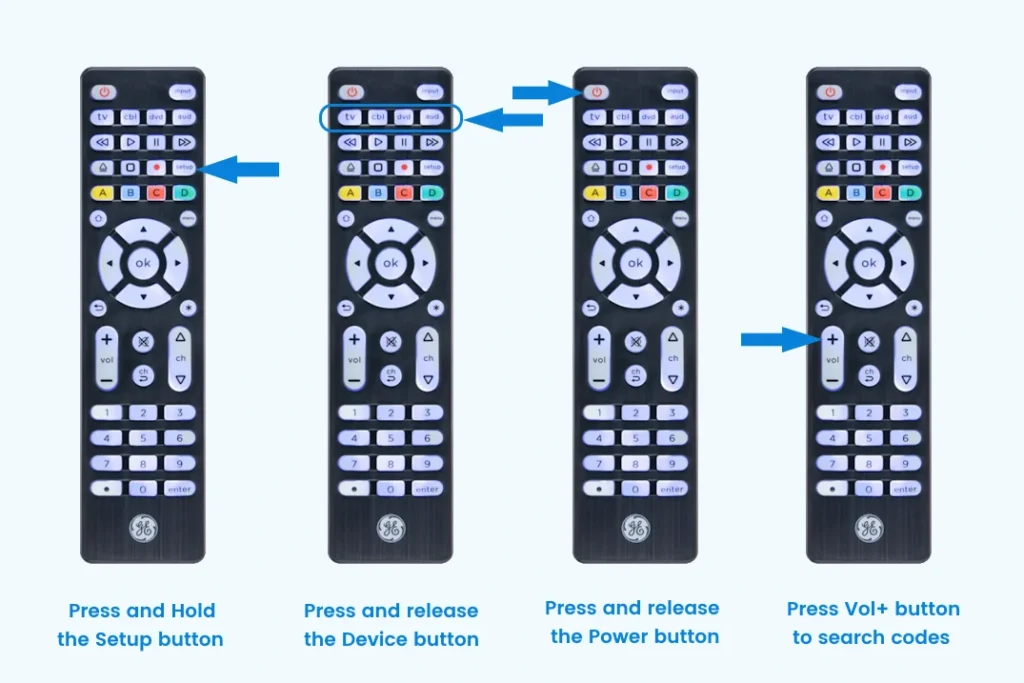
- Enter Setup mode: Press and hold down the SETUP button until the remote’s red LED turns on. Then release the button. The LED will stay on.
- Press the device type button: Press and release the device button for the type of device you want to control (such as TV, STR, BLU-RAY, AUD, DVD, CBL, SAT, and AUX). The LED will blink once and stay on.
- Start Auto Code Search: Press the POWER or PLAY button, depending on your remote model. The remote will send 10 codes from its code library and check whether any of them controls the device. When the device turns off, turn it back on manually. When none of the 10 codes turns off the device, turn it on manually and repeat Step 4 to test the next 10 codes. On older remotes, press the numeric button 1 to save the code.
- Review individual codes: When the device responds, press the VOL+ button to cycle through and test individual codes from the working batch, waiting 3 seconds between each press. Repeat until the device turns off. Once the device turns off, press the device button again to save the code.
- Test the remote’s buttons. Everything working as expected means you are done; otherwise, repeat the Code Search.
- Repeat the process for other devices: For every device you want the remote to control, repeat the above steps.
Watch the video tutorial below to see the steps in action if you find it difficult to perform Auto Code Search.
Method 2: Manual Code Search
Manual Code Search is a programming method that lets you scan through and test the available codes one at a time. You manually press a button on the remote to move through the codes until you find one that allows the remote to control your device.
This older GE remote programming method is available only on some RM-designated legacy remote models, such as RM94902, RM94904, and RM94905. It is not available on newer GE remote models, which use Auto Code Search instead.
So, to program these legacy remotes, use Manual Code Search by following the steps below.
- Power on the device you want to control with the remote.
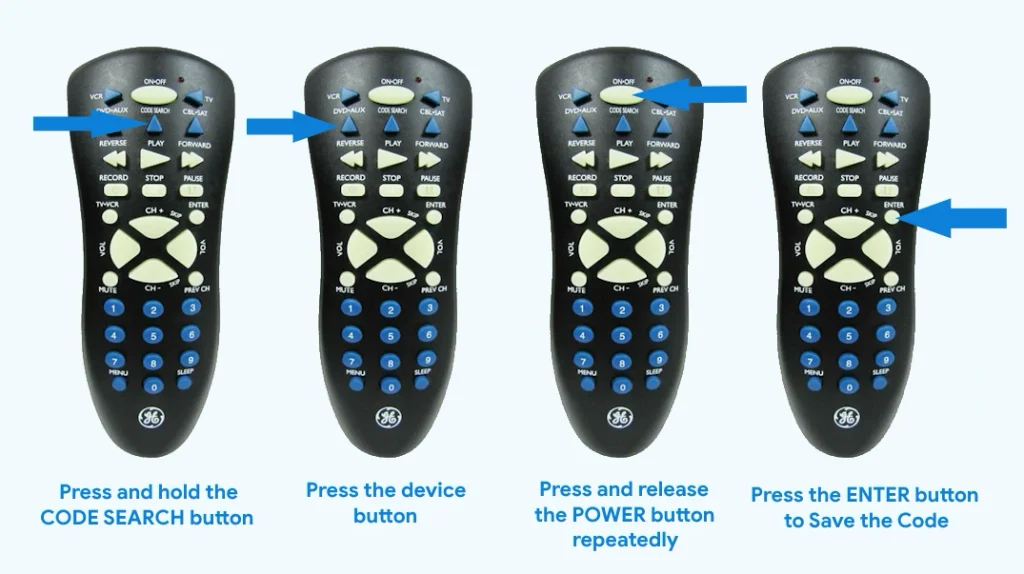
- Enter Setup mode: Press and hold the CODE SEARCH or SETUP button (depending on your remote model) until the remote’s LED turns on. Then release the button.
- Press the device button. For programming the AUX button, first press the AUX and then the device button you want to assign to the AUX button. The LED will blink once and stay lit.
- Start Manual Code Search: Press and release the POWER button repeatedly several times until your device turns off. Give an interval of at least 2 seconds between each press. You may have to press the POWER button up to 250 times because the remote searches through the codes one at a time until it finds one that works with your device.
- Save the code: Press the ENTER or SAVE button (depending on your remote model) immediately when your device turns off. The remote’s LED will turn off.
- Test the remote: Aim the remote at your device and check other buttons to verify their functionality. Repeat the process if it does not work or if it is partially working.
How to Identify the Code Programmed to a Device Button?
The code identification process lets you identify or retrieve the code used to program each device button on your remote through Auto Code Search or Manual Code Search. To identify the programmed code, follow these steps:
- Hold the SETUP button until the LED turns on.
- Press the device button from which you need to retrieve the code. The LED will blink and remain on.
- Retrieve the code digits:
- For newer remotes: Press ENTER, then press 1, 2, 3, and 4 to get each digit. The LED will flash the corresponding number of times for each digit.
- For legacy models: Press and release the SETUP button, then press each number (0-9). The number that causes the LED to blink is the code digit. Repeat for all three digits. After the third digit, the LED will turn off.
- Press Enter to exit.
- Repeat the process to identify the codes programmed to the other device buttons as needed, selecting the required device button in Step 2.
Once the code is identified, note it down somewhere for future reference. You can use the code to program your remote using the Direct Code Entry method if you need to reprogram the remote after a reset, accidentally lose its programming, or make other programming changes, such as assigning the button to a different device.
How to Program a GE Universal Remote to Control Combination Devices Without Codes?
To program your GE universal remote to control a combination device (such as a Combo Television Unit, VCR/DVD, or DVR/CBL combo) without codes, use Auto Code Search or Manual Code Search. Program each device in the combo unit using its corresponding device button on the remote. For example, for a TV/DVD Combo, program a TV code to the TV button and a DVD code to the DVD button to control each device.
What If the Code Search Methods Do Not Work?
If Auto Code Search and Manual Code Search methods fail, use our code lookup tool to find the GE universal remote codes for your device, then follow the step-by-step Direct Code Entry instructions to program your remote with the codes.