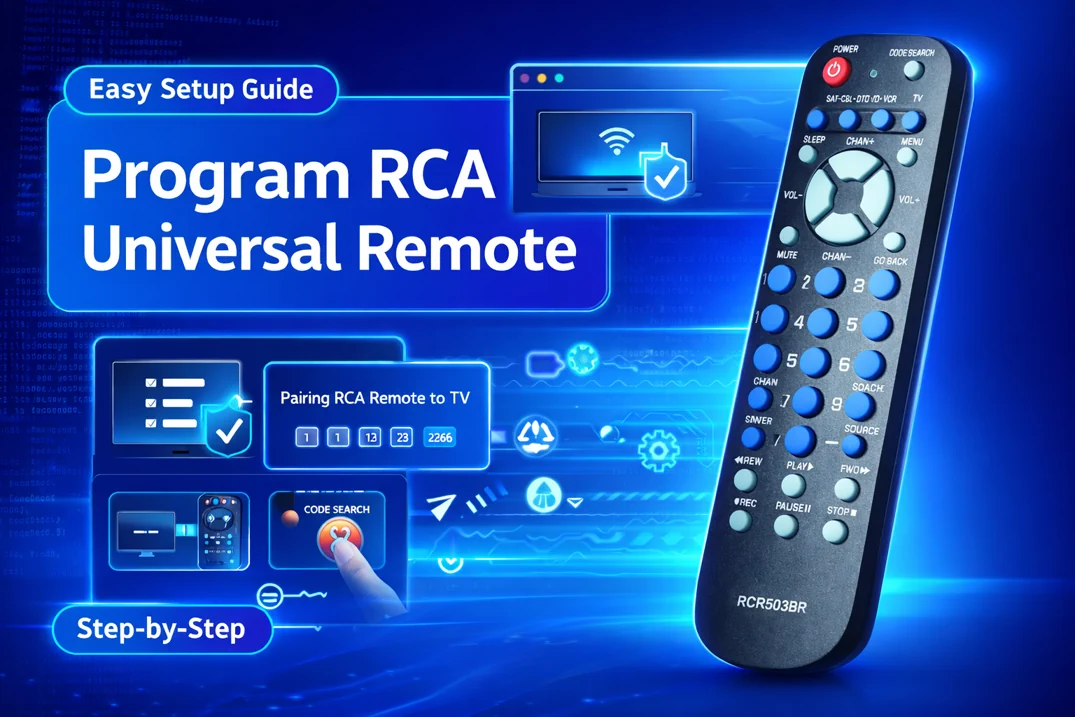
Hama universal remotes include a variety of models, from standard to big-button and streaming remotes with dedicated app buttons for Netflix, Prime Video, Disney+, and more.
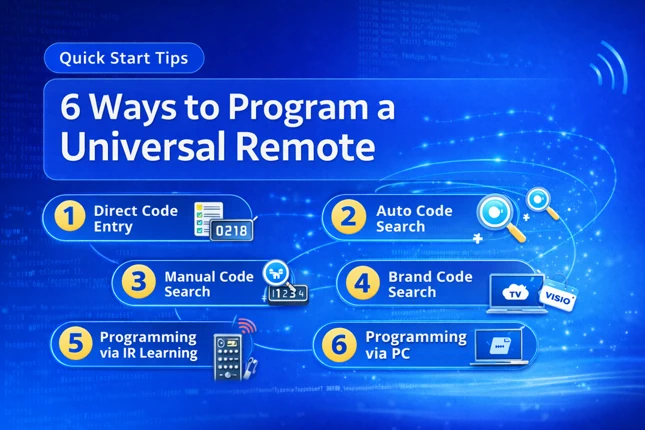
This article will help you easily program your Hama remote using methods like manual code entry, manual code search, and auto code search. For manual code entry, we have a comprehensive code lookup tool to quickly find the right codes for all models. Let’s get started with setting up your remote.
Manual Code Entry
- Turn on your device.
- Press and hold the SETUP button until the LED lights up.
- Press the appropriate device button (e.g., TV, DVD, STB, AUX) once . The LED will blink once and then remain on.
- Enter the code for your device brand (3, 4, or 5 digits depending on the model).
- Press SHIFT and then OK and then SHIFT again to save the code (for models 12047 and 12083). On other models, the code will be save once you finish entering it.
- Test the buttons on your remote. If some functions do not work as expected, repeat the steps using the next code listed for your device.
Manual Code Search
- Turn on your device.
- Press and hold the SETUP button until the LED lights up permanently.
- Press a device key (e.g., TV, DVD, STB) once. The LED will flash once and then stay on.
- Press the POWER or PROG+/PROG- key (or CH+/CH- for Hama 00040074, 00012047, 00012083) repeatedly to scroll through preset codes until the device responds (e.g., turns off or changes channels).
- Press OK (or MUTE for Hama 00012306, 00012307, 00040072, 00040074, 00012047, 00012083, 00040095, 00040098) or SETUP (for Hama 00040074) to save the code and exit the search. The LED will turn off.
- Test the remote to ensure the device responds as expected. If the first code doesn’t work properly, repeat the search starting from the next code.
Auto Code Search
- Turn on your device (TV, DVD, STB, etc.).
- Press and hold the SETUP button until the LED lights up (about 3 seconds).
- Press a device key. The LED will flash once and stay on.
- For Nano streaming remotes, press the brand-specific button (refer to the table below).
- Start the code search:
- For most models: Press PROG+/PROG- or POWER.
- For 00040081/84/88: Press and hold both SET and the device key for 3 seconds, then release.
- When the device responds (e.g., turns off or changes channel), press the appropriate button:
- For most models: Press OK.
- For Hama 00040074: Press SETUP.
- For 00012047/83: Press OK.
- For 00012047/83 (5-digit models): Press SHIFT, OK, and then SHIFT.
- For Hama 00040081/84/88 (3-digit models): Press any key (except SET).
- Test the remote. If it doesn’t work as expected, repeat the search to find a better code.
| Button | Brand |
|---|---|
| PRIME VIDEO | All STB brands |
| DISNEY+ | All TV brands |
| BACK | Panasonic TV |
| HOME | Sony TV |
| MENU | Grundig TV |
| REW | Toshiba TV |
| PLAY/PAUSE | Hisense TV |
| FF | Telefunken TV |
| VOL+ | TCL TV |
| CH+ | Samsung TV |
| VOL- | LG TV |
| CH- | Philips TV |
So these are the 3 different methods by which you can program your Hama universal remote. If you have any doubts regarding the programming procedures or remote codes, feel free to ask via comments.