Code Type
Device Type
Brand
Note: The codes are compiled from multiple sources, so only a subset will be compatible with your specific remote model.
Code Entry Instructions
- Choose the code type (version) of your remote model. If you do not know, select each code version one by one from the drop down list and check whether your model number is listed under that specific code version.
- Select the device type from the next drop down list.
- Select the brand of your device from the brand name drop down list. Now, it will present your with the required codes. Note them down and proceed to next step.
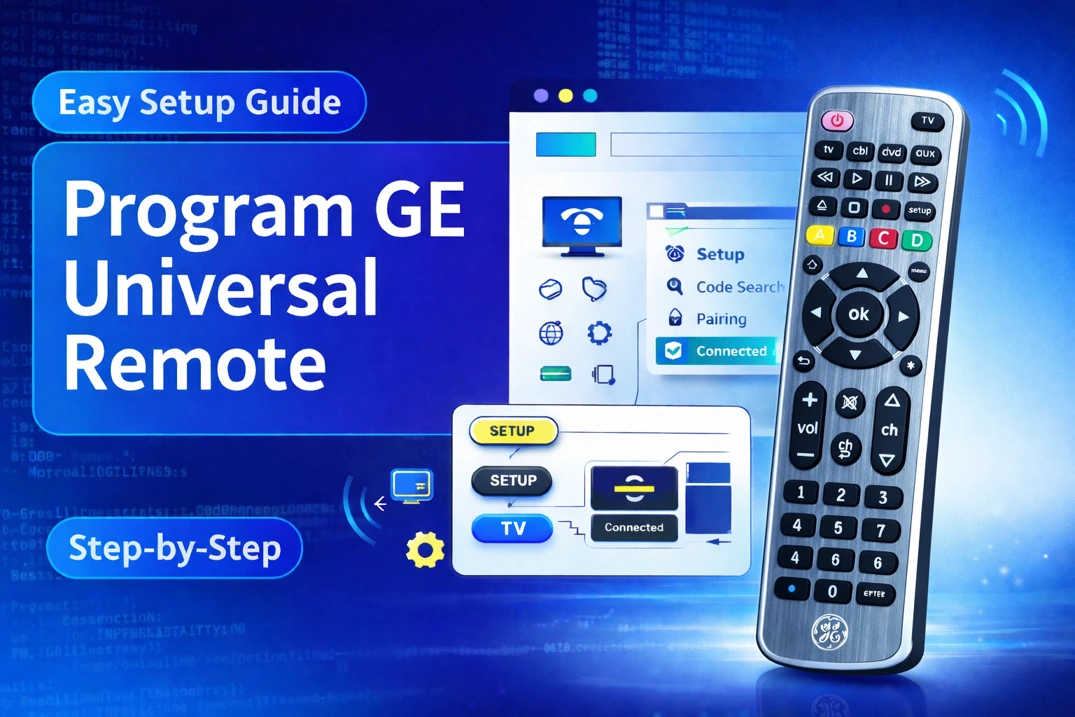
- Now, press and hold the device button (such as TV, DVD-VCR, SAT-CBL) on your remote. The power button will turn on.
- Enter the first code using your other hand while holding the device button. The power button will turn off after entering the last digit.
- Keep holding down the device key and observe the power button. Did the power button turn on?
- If YES, you are done. You have successfully programmed the remote for your device.
- If NO (blinked 4 times and turned off), you have entered the wrong code, or you have missed a step in the process. Check the code and restart from step 2.
- Finally test the remote with your device. If some features don’t work, try a different code that is available for your device.
Can’t Find your Device or Brand?
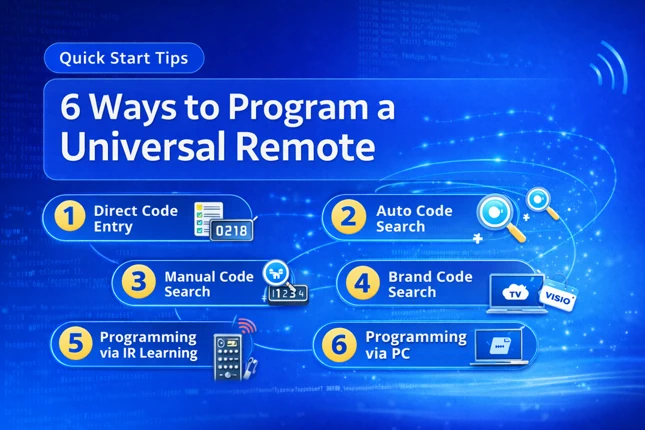
If your device or brand is not available in the code lookup tool, try other programming methods like manual code search, auto code search, brand code search, IR learning, programming via RCA smart app, etc. To learn these methods, read out detailed article on how to program an RCA universal remote.
If you find any code that is missing, incorrect, outdated, or incomplete, you can report it here.