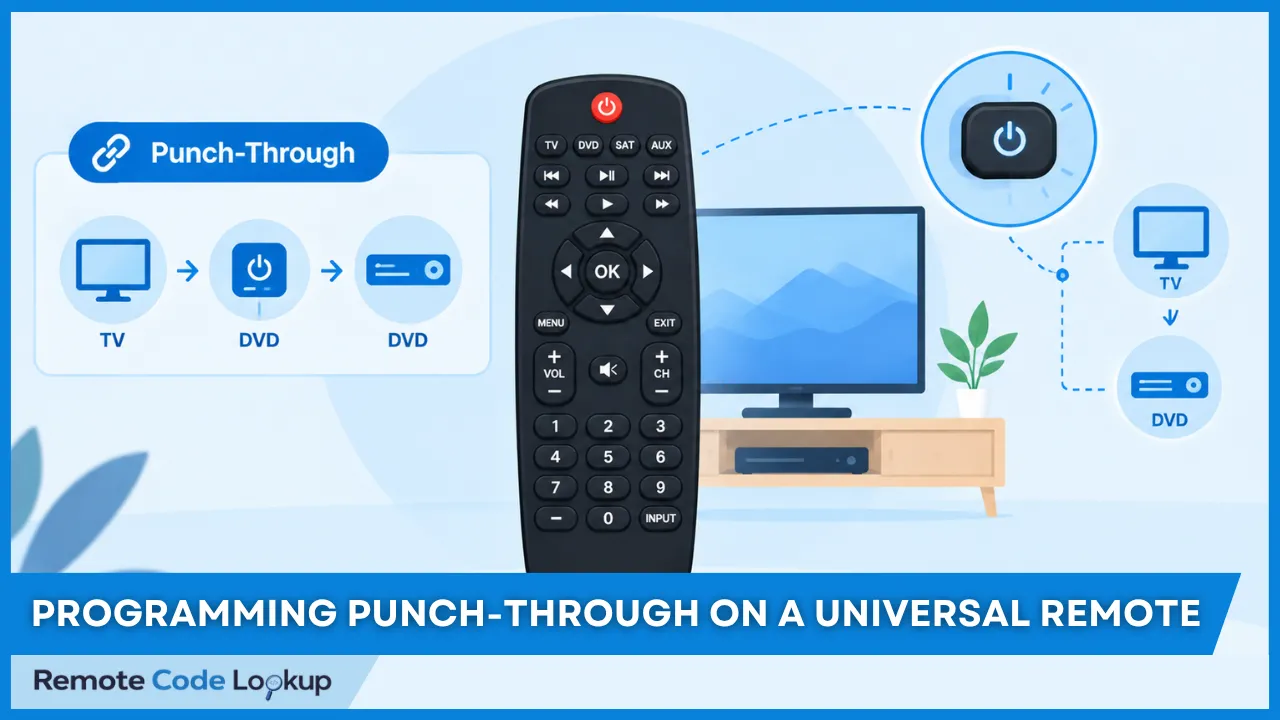
Punch-through is a feature on a universal remote that lets selected controls operate a particular device function while another device mode remains active. For example, punch-through can let the volume buttons control an AV receiver while the remote remains in DVD mode. This allows frequently used controls to remain available without switching the remote to the mode of the device that provides those functions.
The way punch-through works and the control groups it supports depend on the remote model and its programming system. Some remotes support only specific functions, such as volume and mute, while others allow additional controls to be assigned.
What Is Punch-Through?
Punch-through is a programmable feature on universal remotes that allows selected controls to operate a function from a different device while the remote remains in the current device mode. The active device mode continues to control the other buttons, while the selected controls use their assigned punch-through function.
For example, a universal remote can be configured so that its Volume Up and Volume Down buttons control an AV receiver while the remote is in DVD mode. The DVD mode remains active for operating the DVD player, but the volume controls send commands to the receiver.
The available punch-through controls and functions depend on the remote model and its programming system. Common examples include volume and mute controls, while some remotes also support channel, playback, or other control groups.
How Does Punch-Through Work?
Punch-through works by routing a selected group of controls to a specific device function while another device mode is active. The remote keeps the current device mode active but uses the punch-through assignment to determine which device should receive commands from the selected controls.
For example, if Volume Up and Volume Down are assigned to an AV receiver while DVD mode is active, pressing Volume Up sends the receiver’s volume command instead of the DVD player’s volume command. Other buttons continue to operate according to the active DVD mode.
This selective routing applies only to the controls included in the punch-through assignment. The result is a combination of the active device mode for most controls and the assigned punch-through device for the selected controls.
What Functions Can Be Used With Punch-Through?
The functions available for punch-through depend on the universal remote and its programming system. Commonly supported control groups include volume and mute, while some remotes also allow channel, playback, or other frequently used controls to be routed to another device.
Volume and mute controls are commonly assigned to an AV receiver or other audio device. This allows the remote to adjust audio while another device mode remains active.
Channel controls may be assigned to a cable, satellite, or other channel changing device on remotes that support channel punch-through.
Playback controls such as Play, Pause, Stop, Rewind, and Fast Forward may be assigned to a DVD player, Blu-ray player, streaming device, or other playback device when supported by the remote.
The supported control groups, source devices, and available punch-through functions vary by remote model. Some remotes provide only basic volume and mute punch-through, while others allow several control groups to be assigned to different devices.
How Do You Program Punch-Through?
Programming punch-through involves selecting the device mode in which the controls will be used, choosing the control group, selecting the device that provides the required function, and assigning that function to the controls. Before programming a punch-through, make sure the devices involved are already programmed on the remote. For example, if the volume controls will operate an AV receiver while DVD mode is active, the remote must already be programmed to operate both devices. If you have not yet programmed them, first program your universal remote using the appropriate method. Once the required devices are configured, you can set up punch-through by following these steps.
Step 1: Select the Device Mode
Start by selecting the device mode in which you want the punch-through controls to operate. This is the mode that will remain active when you use the configured controls.
For example, if you want the volume buttons to control an AV receiver while operating a DVD player, select the DVD mode as the device mode for the punch-through configuration.
Step 2: Select the Control Group
Choose the group of controls that you want to route to another device function. Depending on the remote, this may include volume and mute, channel, playback, or another supported group.
For example, selecting the VOL+, VOL−, and MUTE controls creates a volume control group that can be assigned to a different device.
Step 3: Select the Device Providing the Function
Select the device whose function should operate through the chosen controls. The device must be configured on the remote and must support the function you want to use.
For example, select the AV receiver if the volume controls should operate its volume function while DVD mode is active.
Step 4: Assign the Function to the Controls
Assign the selected device’s function to the control group. This configuration tells the remote to route those controls to the selected device while the specified device mode is active.
For example, assigning the receiver’s volume function to the DVD mode’s volume controls makes VOL+ and VOL− operate the receiver instead of the DVD player’s volume function.
Step 5: Save and Test Punch-Through
Save the punch-through configuration and test the assigned controls while the selected device mode is active. Press each configured control and confirm that it operates the intended device function.
If a control does not respond as expected, check the selected device, control group, and assigned function. The programming options and confirmation steps vary by remote model.
How Do You Customize Punch-Through?
Once punch-through is programmed, some remotes allow you to change the device assigned to a control group, apply the configuration to different device modes, or disable the routing when it is no longer needed. The available customization options depend on the remote model and its programming system.
What Is the Difference Between Punch-Through and Other Universal Remote Features?
Punch-through differs from other programmable universal remote features mainly in how it handles controls, commands, and device coordination. Its defining behavior is that selected controls can remain available for a particular device function while the remote operates in another device mode. The following comparisons show how this behavior differs from other features of a universal remote.
What Is the Difference Between Punch-Through and an Alias?
The difference between punch-through and an alias is how they make a device function available through a control. Punch-through keeps selected controls assigned to a particular device function while another device mode is active. An alias instead gives another control access to an existing command. For example, punch-through can make the VOL+ button operate an AV receiver while the remote is in DVD mode, whereas an alias can assign the receiver’s existing Volume Up command to another button.
What Is the Difference Between Punch-Through and a Macro?
The difference between punch-through and a macro is whether the feature maintains access to a device function or executes a sequence of commands. Punch-through lets selected controls continue operating a chosen device function across device modes. A macro uses one trigger to execute multiple commands in a defined order. For example, punch-through can keep the receiver’s volume controls available in DVD mode, while a macro can turn on the TV, turn on the receiver, and select the required input.
What Is the Difference Between Punch-Through and an Activity?
The difference between punch-through and an activity is the scope of control each feature provides. Punch-through applies selected controls to a device function while another device mode remains active. An activity coordinates multiple devices and their functions around a particular task, such as watching a movie. For example, punch-through can let the receiver handle volume while DVD mode is active, whereas an activity can coordinate the TV, receiver, and streaming device for the same viewing task.