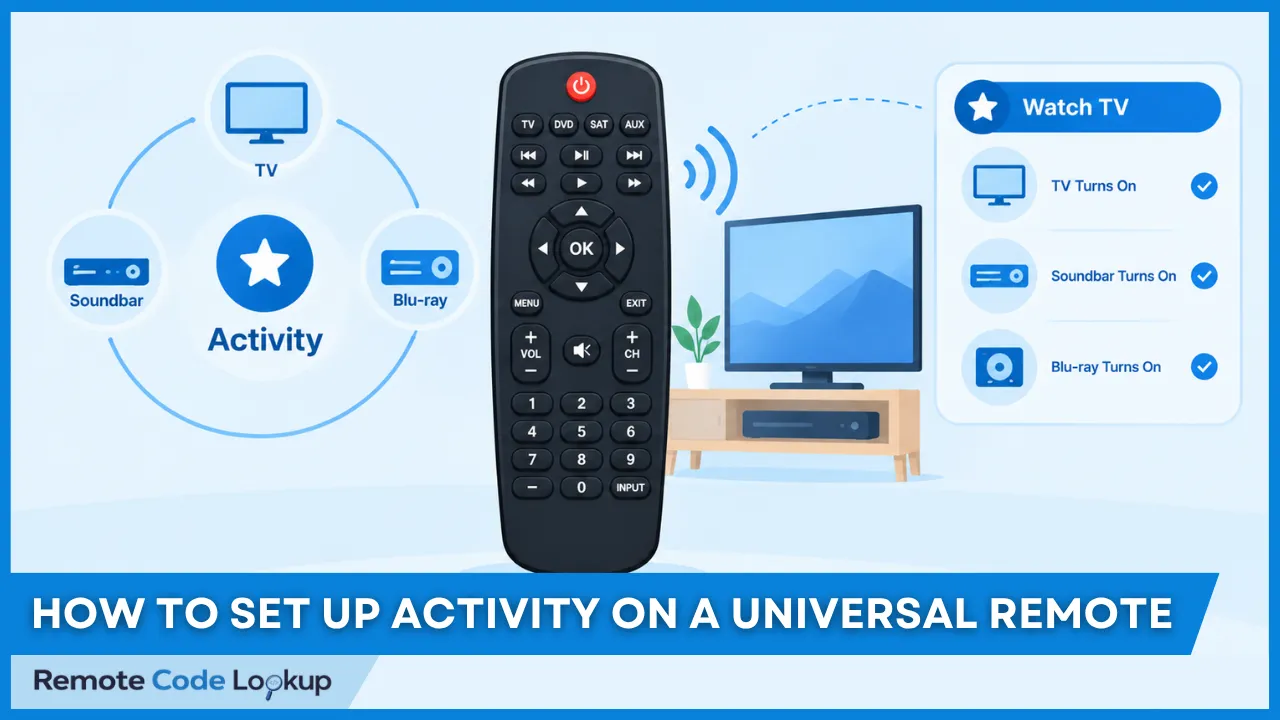
An activity on a universal remote combines the devices and controls needed for a specific task, such as watching TV, watching a movie, or listening to music. Instead of operating each device separately, the activity organizes the remote around the task you want to perform.
The way activities work and the options available to configure them depend on the universal remote system and the devices it supports. This includes how devices are assigned roles, how power and input commands are managed, and which controls are assigned to each device.
What Is an Activity?
An activity on a universal remote is a set of device controls configured for a specific task. It brings together the devices and functions required for that task, allowing you to control them without manually operating each device separately.
Unlike a traditional device based remote layout, an activity organizes control around what you want to do. For example, a ‘Watch Movie’ activity can combine a TV, AV receiver, and Blu-ray player or streaming device into one viewing setup.
An activity can assign different functions to different devices. The TV may handle picture and input selection, the AV receiver may handle volume, and the Blu-ray player or streaming device may handle playback. This allows the remote to present the controls needed for the selected task without requiring you to switch between individual device modes.
What Does an Activity Do?
An activity coordinates the devices and functions required for a particular task. Depending on the remote system, it can perform the following:
- Turn on the devices required for the activity.
- Select the appropriate input on a TV or AV receiver.
- Assign volume controls to the device responsible for audio.
- Assign playback controls to a Blu-ray player or streaming device.
- Provide access to the controls needed for the selected task.
For example, a ‘Watch TV’ activity can prepare the TV and select the required source. A ‘Watch Movie’ activity can prepare the TV, AV receiver, and playback device for viewing. A ‘Listen to Music’ activity can configure an audio receiver and the source device required for playback.
Some universal remote systems also allow custom activities to be created for tasks that are not included by default. The available activities and functions depend on the remote system and the devices it supports.
How Does an Activity Work?
An activity works by assigning device roles and routing commands according to the selected task. When you select an activity, the remote uses its configuration to determine which device should receive each type of command.
For example, in a Watch Movie activity, the TV can be assigned to handle picture and input commands, the AV receiver can handle volume commands, and the Blu-ray player or streaming device can handle playback commands. The user can therefore control the system according to the task rather than manually selecting each device before sending a command.
An activity can also manage the power and input states required for the task. It may turn on the devices needed for the activity and select the input through which those devices are connected.
The result depends on the current state of the equipment. For example, a device may already be on, or a TV or receiver may already be set to a different input. How the activity handles these conditions depends on the remote system and its method of managing device states. This can affect how reliably the activity reaches the intended setup, particularly when devices have been operated manually before the activity is started.
How to Set Up an Activity on a Universal Remote?
To set up an activity, you need a universal remote that supports activities and the devices you want the activity to control. The devices should already be configured on the remote so their commands and functions are available when you create the activity. If you have not configured them yet, start with programming your universal remote using the appropriate method. Once the required devices are available, you can select the devices and functions that the activity will coordinate and configure the activity settings.
The following are the general steps to set up an activity.
Step 1: Select the Devices for the Activity
Select the devices that the activity needs to control. For a Watch Movie activity, this might include a TV, AV receiver, and Blu-ray player or streaming device. Include only the devices required for the task so the activity does not send unnecessary commands. These devices form the activity’s device configuration, with each one assigned a role based on the function it performs.
Step 2: Assign Device Functions
Assign each device the functions it should handle during the activity. The TV can handle picture and input commands, the receiver can handle volume, and the Blu-ray player or streaming device can handle playback. These assignments determine which device responds when you use the activity controls. This function mapping allows the remote to route each control to the appropriate device without requiring you to switch manually between device modes.
Step 3: Configure Power Commands
Configure the power commands for the devices that need to be on when the activity starts. If the activity requires the TV, receiver, and playback device, assign the appropriate power commands to those devices. Some remote systems also let you specify how the activity should behave when a device is already on. Where supported, discrete Power On and Power Off commands can provide more predictable behavior than toggle commands because they specify the intended device state.
Step 4: Set the Correct Input
Set the input that each device needs for the activity. For example, the TV or receiver may need to switch to the input connected to the playback device. The required input commands depend on how the devices are connected and how the remote identifies their inputs. This may involve selecting an HDMI input, optical input, audio source, or another source supported by the equipment.
Step 5: Assign Volume and Playback Controls
Assign volume controls to the device that handles sound and playback controls to the device that handles the source. For example, the receiver can receive volume commands while the Blu-ray player or streaming device receives play, pause, and navigation commands. Navigation controls such as directional buttons, Menu, and Select may also be assigned to the device responsible for navigating the active source.
Step 6: Save the Activity
Save the activity after configuring its devices, functions, power commands, inputs, and controls. Once the activity is saved, select it from the remote or its companion app to start it. The remote then sends the configured commands and assigns the selected controls to the appropriate devices. After saving, test the activity from its normal starting state to verify that the devices power on correctly, the required inputs are selected, and the controls operate the intended devices.
How Do You Customize an Activity?
You can customize an activity by adding or removing devices, changing device roles, modifying power or input settings, and changing which devices receive specific controls.
For example, you may change the device used for volume control from the TV to an AV receiver, or replace one playback device with another. The available customization options depend on the activity system and the capabilities of the connected devices.
How Is an Activity Different From Other Universal Remote Features?
An activity coordinates multiple devices and their functions for a specific task, while other programmable remote features can execute command sequences or reuse existing device commands. The main differences depend on whether the function coordinates devices, executes commands in sequence, or reuses an existing command.
What Is the Difference Between an Activity and a Macro?
The difference between an activity and a macro is that an activity coordinates multiple devices and their functions for a specific task, while a macro executes a predefined sequence of commands when triggered.
For example, a ‘Watch Movie’ activity can coordinate a TV for pictures, an AV receiver for volume, and a streaming device for playback. A macro can instead execute a fixed sequence such as turning on the TV, turning on the receiver, and selecting the required inputs. Universal remote macros are therefore useful when you want specific commands to execute in a defined order, while an activity organizes the devices and functions needed for a particular task.
Can You Program a Macro Inside an Activity?
Yes, you can program a macro and place it inside an activity on some universal remotes. One For All remotes, such as the URC7956, URC7967, URC7981, and URC7985, support this capability. Where supported, the macro can execute a predefined sequence of commands, while the activity coordinates the devices and functions required for the task.
What Is the Difference Between an Activity and an Alias?
The difference between an activity and an alias is that an activity coordinates multiple devices and their functions for a specific task, while an alias on a universal remote links a button or control to an existing device command for reuse.
For example, a ‘Watch Movie’ activity can coordinate the TV, receiver, and streaming device for the task, while an alias can make an existing receiver volume command available from another button. Aliases are therefore useful when you want to reuse an existing device command rather than coordinate multiple devices or execute a sequence of commands.
What Is the Difference Between an Activity and Punch-Through?
The difference between an activity and punch-through is that an activity configures multiple devices and their controls for a particular task, while punch-through on a universal remote routes selected controls to a specific device function while another device mode remains active.
For example, a ‘Watch Movie’ activity can prepare the TV, receiver, and streaming device for a viewing task, while punch-through can route the volume buttons to the receiver while the remote remains in DVD mode. An activity therefore organizes multiple devices around a task, while punch-through changes where specific controls send their commands.