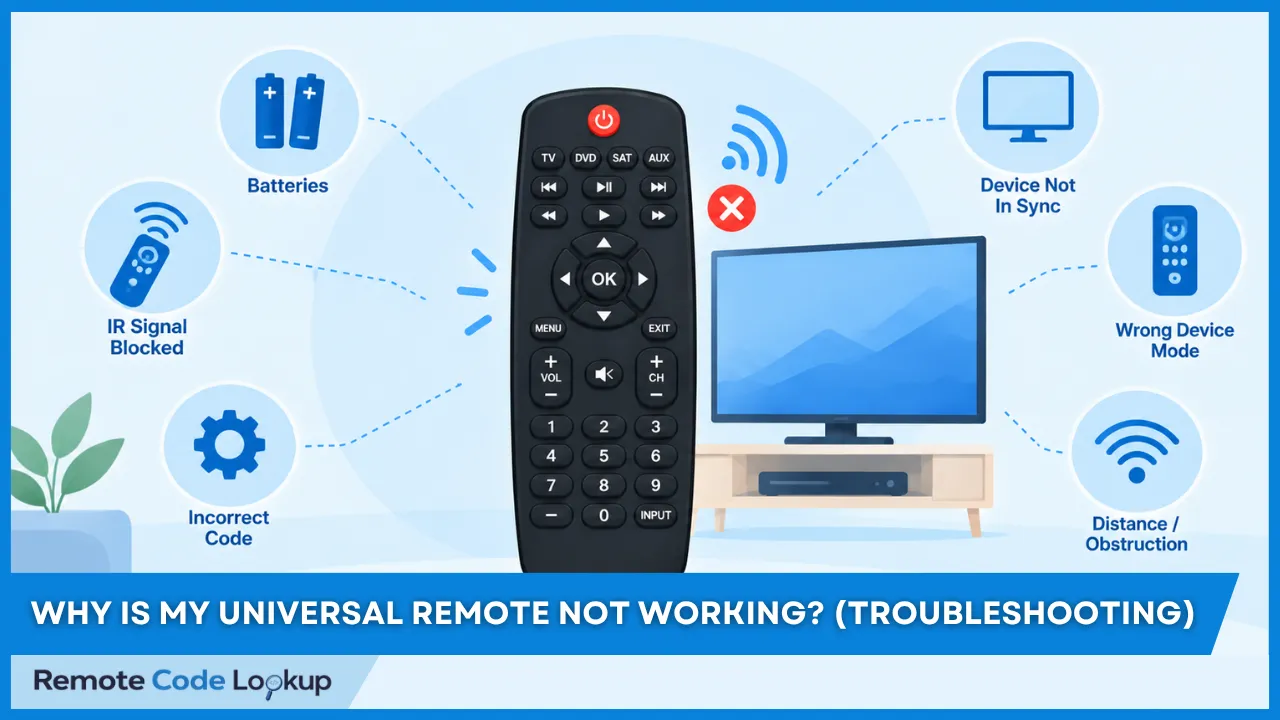
Your universal remote stops working because of dead or weak batteries, dirty infrared (IR) sensors, signal blockage, an incorrect operating mode, or incorrect programming codes. Other possible causes include temporary electronic glitches, IR sensor failure on the target device, lost software synchronization, hub connection problems, or hardware failure.
This comprehensive guide details a structured troubleshooting process organized into 10 sequential steps, starting from basic checks, such as battery replacement, cleaning, and checking for obstructions, to signal testing, mode selection, reprogramming, soft resets, software resynchronization, hub resets, and factory resets. It also answers frequently asked questions about common universal remote problems, signal transmission, device compatibility, programming retention, reset procedures, and when to replace the remote.
How to Fix a Universal Remote That Is Not Working?
To fix a universal remote that is not working, follow these troubleshooting steps:
1. Check and Replace Batteries
Check that the batteries are installed with the positive (+) and negative (−) terminals aligned with the markings inside the compartment. Replace them with a fresh set of batteries, avoiding a mix of old and new ones, as weak batteries may not provide enough power to transmit the infrared signal even if the indicator light turns on.
If the metal battery contacts show rust or white oxidation, clean them carefully with an appropriate contact-cleaning tool. Avoid scraping them with a blade or other metal object, which could damage the contacts or cause a short circuit.
2. Check for Obstructions and Interference
Remove any objects blocking the line of sight between the remote and the TV’s infrared (IR) sensor, such as soundbars or decorations. Reduce potential light interference by closing blinds or dimming room lights, as direct sunlight and some fluorescent lamps interfere with IR signals. If you use an RF or Bluetooth remote, temporarily disconnect nearby devices, such as streaming sticks or gaming consoles, to check whether they are causing connection interference.
3. Clean the Remote and the Sensor
Clean the remote’s infrared emitter (usually an LED) and the device’s IR sensor with a soft, dry cloth to remove dust and dirt that block signal transmission. Avoid using excessive moisture or abrasive cleaners that could damage the components.
4. Test the IR Signal with a Smartphone Camera
Infrared (IR) light is invisible to the naked eye, so you can use a smartphone camera to check whether the remote is transmitting a signal.
To test the IR signal follow these steps:
- Open the camera app on your smartphone.
- Point the top end (the IR emitter LED) of the remote directly at the phone’s camera lens.
- Press multiple buttons on the remote.
- Look at your phone screen. If you see a flashing purple, pink, or white light, your remote is emitting a signal. If no light appears, the remote’s internal hardware is likely broken or dead.
It is also worth tying the same procedure with another smartphone camera as some cameras filter our infrared light.
5. Exit Shift Mode
Shift mode changes the normal functions of certain buttons on a universal remote, allowing them to perform secondary functions. The remote will not work as expected while shift mode is active because the buttons do not perform their usual commands.
To exit shift mode, press and release the SHIFT or SETUP button (depending on your remote brand and model). When the LED blinks, press the arrow keys and wait until the LED stops blinking. Remove the batteries, wait for two minutes, and reinsert them. Then reprogram the remote using the correct device code.
6. Verify Mode Selection and Reprogram the Remote
Universal remotes control multiple devices, so make sure you press the correct component button, such as TV, CABLE, or AUD, before issuing commands. If the remote still does not work, its programming have been lost. Find the correct device setup codes and follow the universal remote programming instructions to reprogram it.
7. Perform a Power Discharge Reset (Soft Reset)
Power cycling is the process of completely turning an electronic device off and then back on again to drain residual power and reset its internal state.
By disconnecting the power source and allowing all leftover electrical charges trapped in the capacitors to dissipate fully, you clear out frozen memory and software glitches, forcing the hardware to reboot into a completely clean state when electricity is restored.
To power cycle the remote, remove its batteries and press and hold the Power button for 30–60 seconds, or press all buttons several times. Reinsert fresh batteries and test the remote.
To power cycle the TV or other controlled device, unplug it from the wall outlet and wait 60 seconds. Then press and hold its physical Power button for 30 seconds before plugging it back in. Test the remote after the device restarts.
8. Resync the Remote to the Computer Software
Some universal remotes, such as Logitech models, use computer software to configure and manage connected devices. After adding a device or changing settings in the software, connect the remote to the computer and click the Sync button to apply the changes. Syncing is also necessary after updates to the remote’s configuration software. If the remote stops working after a software update to the TV, remote, or configuration software, check for known software issues and available fixes.
9. Reset the Universal Remote Hub
Universal remotes can operate independently or connect to a hub. Skip this step if your remote does not use a hub. If a hub-based remote stops working, it may have lost its pairing with the hub, or the hub may need to be restarted.
To reset the hub, unplug it from the wall outlet, plug it back in, and wait for it to finish starting up. This may take a minute or two, depending on the model. For example, Logitech hubs typically take around 30 seconds to power up. Test the remote once the hub is ready.
If the remote still does not work, check whether it is paired with the hub. Pairing procedures vary by brand and model, so follow the instructions in your remote’s user manual.
10. Reset the Universal Remote to Factory Settings (Hard Reset)
A factory reset restores the universal remote to its original default settings, erasing stored device codes and customized configurations. It can help resolve persistent problems caused by corrupted programming, incorrect settings, or configuration glitches that remain after basic troubleshooting.
The reset procedure varies by brand and model. Some remotes require a specific button combination, while others use a dedicated reset button or a pre-defined reset code. Refer the instructions for your remote model and follow the appropriate factory reset procedure. The following sections provide resetting instructions for major universal remote brands.
How to Reset a GE Universal Remote?
To reset a GE universal remote, follow these steps:
- Press and hold the SETUP button until the remote’s indicator LED turn on, then release.
- Press and release the MUTE button. For GE Roku TV replacement remote, press the REWIND button 4 times instead.
- Press and release the number zero (0) button. The LED will blink twice.
Note: To reset Philips universal remotes manufactured by Jasco, follow the same steps above.
How to Reset an RCA Universal Remote?
To reset an RCA universal remote, follow these steps:
- Open the battery compartment and remove both the batteries.
- Press and hold the number 1 button for 60 seconds, then release and wait for 10 seconds.
- Reinsert the batteries.
How to Reset a One For All Universal Remote?
To reset One For All universal remotes (that have the chip version R01), follow the steps below:
- Remove one battery from the remote and press any button to discharge remaining power.
- Reinsert the battery. The LED light will blink twice.
- Press and hold digits 2 and 8 simultaneously within 6 seconds of reinserting the batteries, until the LED blinks twice.
- Type the reset code 981. The LED will blink 4 times to confirm the factory reset is complete.
How Do I Reset a Universal Remote Without a Reset Button?
You can reset a universal remote without a dedicated reset button by using a manufacturer-specified button combination or reset code. The procedure varies by model, and some remotes do not support a factory reset. Read the manufacturer’s manual before proceeding because a factory reset erases programmed device codes and customized settings.
What Are the FAQs About Non-Functioning Universal Remotes?
The following sections answers the frequently asked questions about universal remotes that are note working.
Why Is My Universal Remote Not Working Even With New Batteries?
Your universal remote is not working with new batteries because of incorrect battery installation, poor contact at the battery terminals, damaged buttons, internal electronic faults, incorrect programming, or communication problems with the controlled device. New batteries cannot resolve problems caused by faulty hardware, incompatible codes, or connection issues.
Why Is My Universal Remote Not Responding to Button Presses?
Your universal remote is not responding to button presses because it is in the wrong operating mode, has stuck or damaged buttons, or cannot communicate with the target device. Infrared remotes require a compatible signal path (line of sight), while Bluetooth and RF remotes require a working connection or pairing. If only certain buttons fail, the problem is limited to those buttons or their programmed commands.
Why Does My Universal Remote Work Only at Close Range?
Your universal remote works only at close range because of weak batteries, a damaged infrared transmitter, signal interference, or reduced receiver sensitivity. For infrared remotes, distance, the angle of the remote, and obstructions affect signal reception. If the problem persists at normal operating distances, the remote or the device’s receiver requires inspection.
Why Does My Universal Remote Turn the TV On but Not Control Other Functions?
Your universal remote turns the TV on but fails to control volume, input selection, or menu navigation because the programmed code supports only some commands. Try another compatible device code to restore the missing functions. Also, check whether another device, such as a cable or satellite receiver, handles the functions you are trying to control.
Why Does My Universal Remote Control Some Devices but Not Others?
Your universal remote controls some devices but not others because the affected device has incorrect code, unsupported commands, a connection problem, or limited compatibility with the remote. Verify that the remote supports the device’s brand and type, then check its programming and connection separately.
Can I Reprogram a Universal Remote Without the Original Device Remote?
Yes, you can reprogram most code-based universal remotes without the original device remote by entering a compatible device code or using an automatic code search feature, if available. However, infrared learning remotes require a working original remote to learn its signals. Some functions remain unavailable if the universal remote does not support the required commands.
Why Does My Universal Remote Keep Losing Its Programming?
Your universal remote keeps losing its programming because of a model-specific memory limitation, interrupted configuration, or a problem with battery replacement or power retention. Some remotes retain programmed codes without batteries, while others preserve them only for a limited time. For example, certain Jasco universal remotes retain programmed codes for up to 10 minutes during battery changes. Check your model’s manual to confirm its memory-retention behavior.
How Do I Know If My Universal Remote Needs Replacement?
You need to replace your universal remote if it remains unresponsive after basic power, programming, and connection problems have been ruled out, or if it has physical damage, corroded battery contacts, or persistently faulty buttons. A confirmed hardware failure, such as an infrared transmitter that does not emit a signal despite working batteries, also justify replacement. Before replacing your remote verify that the problem is not caused by the controlled device’s receiver or an incompatible code before replacing the remote.