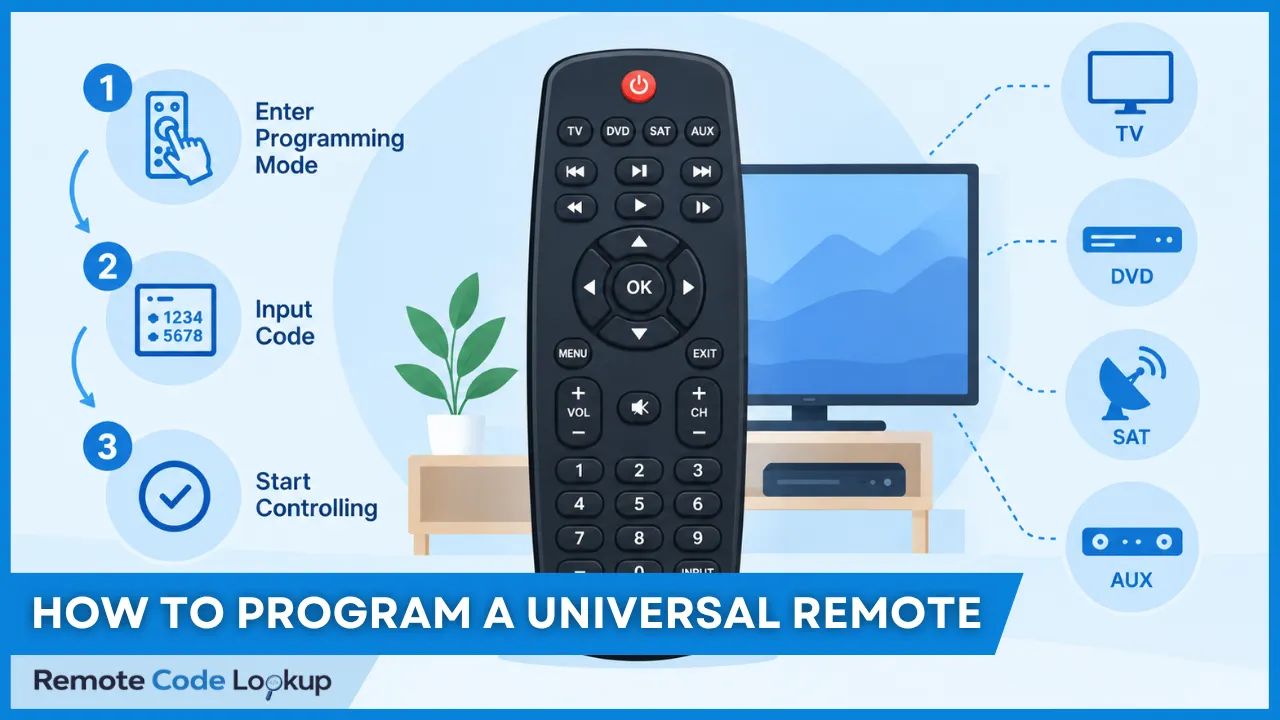
Programming a universal remote control is the process of setting up and configuring a single remote to operate multiple electronic devices, such as a television, DVD or Blu-ray player, streaming device, audio receiver, or cable box. The setup can be performed using seven different programming methods, depending on whether the device code is known and what features the remote supports. Direct code entry allows a known device code to be entered manually, while auto code search, brand code search, and manual code search can identify a suitable stored code when the exact code is unknown or does not work.
When stored codes cannot provide the required compatibility, infrared (IR) code learning can copy individual commands from an original remote. Compatible remotes may also support PC configuration or app-based programming, which provide software-based interfaces for selecting devices, assigning commands, and synchronizing configurations. These programming methods can then be applied to specific devices, such as a TV, with the selected setup tested and saved to ensure that essential functions work correctly.
Beyond basic device control, some universal remotes provide advanced functionality for simplifying multi-device operations, such as executing multiple commands with one button press, coordinating several devices for a specific task, and linking another button to an existing device command. Together, these programming options allow a universal remote to be configured for both everyday device control and more automated home-theater routines.
Method 1: Direct Code Entry
Direct Code Entry, also called Manual Code Entry, is a universal remote programming method in which you manually enter a specific device code assigned to the target device’s brand, model, and type. One For All calls this method Set Up by Code. It is the easiest and quickest way to program a universal remote, but you must know the correct code beforehand.
The general steps for programming a universal remote using the direct code entry method are as follows:
- Turn on the device you want to program. Make sure the television, DVD/Blu-ray player, cable or satellite box, streaming device, audio receiver, or other target device is powered on and ready to receive commands.
- Find the correct device code. Check the universal remote’s code list, instruction manual, manufacturer support page, or online remote code lookup tools for the code corresponding to the device. Some manufacturers have multiple codes because different models, product generations, and infrared command sets may use different codes.
- Enter programming mode on the remote. Press and hold the Setup, Program, or similarly labeled button until the remote’s indicator light responds according to the instructions for that model.
- Select the appropriate device mode. Press the device-mode button corresponding to the equipment you are programming, such as TV, DVD, AUX, CBL/SAT, or STREAM. This tells the remote which device category the code will be assigned to.
- Enter the device code. Use the remote’s numeric keypad to enter the corresponding multi-digit code. Depending on the remote model, the indicator light may blink, turn off, or provide another visual signal to confirm that the code has been entered or accepted.
- Test the programmed remote. Point the remote toward the device and test essential commands such as Power, Volume, Channel, Mute, Input, Menu, and navigation controls. Testing several functions is important because a code may operate basic functions while providing limited compatibility with other commands.
- Try another compatible code if necessary. If the device does not respond or some important functions do not work correctly, repeat the direct code entry procedure using another code listed for the same manufacturer or device model. Multiple codes may provide different levels of command compatibility, so testing the available codes can help identify the most suitable one.
If none of the listed codes successfully controls the device, the auto code search method can be used to find a compatible code without entering codes manually.
Method 2: Auto Code Search
The automatic code search method programs a universal remote by cycling through a sequence of stored device codes until the remote finds one that controls the target device. This method eliminates the need to identify and manually enter a device code, but it depends on the remote having a compatible code stored in its internal code library. This method is particularly useful when the correct device code is unknown, unavailable in the remote’s code list, or when the codes found through Direct Code Entry do not work.
To program a universal remote using auto code search, follow these general steps:
- Turn on the device you want to program. Keep your device powered on and pointed toward the remote.
- Put the universal remote into programming mode. Press and hold the Setup, Code Search, Magic, or similarly labeled programming button until the indicator light responds. The exact button and indicator-light behavior varies by remote brand and model.
- Select the appropriate device mode. Press the device button corresponding to the equipment you are programming.
- Start the automatic code search. Activate the remote’s code-search function according to its instructions. The remote will begin cycling through compatible device codes, typically sending a control command to the target device with each code. The indicator light may remain illuminated, blink, or display another status signal while the search is in progress.
- Watch for a response from the device. When the device responds to a code, such as turning off after receiving a Power command, pause or stop the search. This response indicates that the remote has found a code that may be compatible with the target device.
- Confirm and save the detected code. Press the required confirmation, Enter, OK, or Setup button to store the detected code in the selected device mode. On some universal remotes, the code is saved automatically after the search is stopped, while others require a separate confirmation step.
- Test the remote’s functions. Point the remote at the device and test the important buttons.
- Continue searching if the detected code is not suitable. If the device responds but important functions do not work correctly, resume the code search and test the next available code.
- Complete the programming process. Once a suitable code has been identified and the essential functions work correctly, exit programming mode and use the remote normally.
If the automatic code search does not find a suitable code, the brand code search method provides another way to narrow the code search by using the target device’s manufacturer or brand.
Method 3: Brand Code Search
Brand Code Search is another universal remote programming method that narrows down the available device codes to those associated with a specific manufacturer or brand. Instead of entering a known code or searching through the remote’s entire code library, you select the target device’s brand using a preset button and allow the remote to search through the corresponding group of codes. In One For All remotes, this method is known as SimpleSet.
To set up a universal remote using the brand code search method, follow these general steps:
- Turn on the target device. Power on the device that you want to control and keep the remote pointed toward the device.
- Locate the brand code. Check and locate your device’s brand code from the user manual.
- Select the appropriate device mode. Press the corresponding device button, such as TV, DVD, AUX, CBL/SAT, or STREAM, to specify the type of equipment being programmed. Selecting the correct device category ensures that the brand search uses the appropriate group of codes.
- Enter the brand code. Enter the manufacturer-specific brand code that you found out in step 2.
- Press and release the Power button repeatedly. The remote will cycle through the stored codes associated with that manufacturer and send commands to the target device to determine whether one of those codes is compatible. Because the search is restricted to the selected brand, it can reduce the number of codes that need to be tested compared with a broader automatic code search.
- Watch for a response from the device. When the target device responds, such as switching off after receiving a Power command, stop or pause the search. A response indicates that the remote has found a potentially compatible code, but the code should still be tested before being permanently accepted.
- Confirm and save the code. Press the required Enter, OK, Setup, or confirmation button if the remote requires one to store the detected code.
- Test the programmed functions. Point the remote toward the target device and test all required buttons.
Brand code search is most useful when the device manufacturer is known but the specific device code is not. By restricting the search to codes associated with the identified brand, this method can make code search more targeted while still avoiding the need to know the exact code beforehand.
If your device does not respond it means that you have exhausted the codes for your particular brand. In this case, the manual code search method offers another way to work through available codes and identify one that operates the target device.
Method 4: Manual Code Search
In the manual code search method, the user manually advances through the remote’s available device codes and tests each code until finding one that controls the target device. Unlike direct code entry, this method does not require the user to know the exact device code beforehand; instead, the user controls the progression through the available codes and identifies a suitable one by testing the target device.
Given below are the general steps to program a universal remote using the manual code search method.
- Turn on the target device. Power on the equipment you want to program.
- Put the universal remote into programming mode. Press and hold the Setup, Program, Code Search, or similarly button until the indicator light responds according to the remote’s instructions.
- Press and release the power button repeatedly. Wait for at least two seconds between each time you press the power button. This process takes some time and you will sometimes need to press the button up to 250 times as the code search is manual.
- Stop when the device turns off. When the target device turns off, press the Enter or Save button to save the code and exit the programming mode.
- Test multiple remote functions. Verify Power, Volume, Channel, Mute, Input, Menu, navigation, playback, and other controls applicable to the target device.
- Continue the search if compatibility is incomplete. If the device responds but important functions do not work, repeat the manual code search and test subsequent codes.
Manual code search is useful when the exact device code is unknown and the user wants greater control over which available codes are tested. It keeps the code-selection process in the user’s hands while allowing individual codes to be evaluated for compatibility with the target device.
If manual code search cannot provide a compatible code, programming via infrared code learning offers another method by learning the infrared commands from an original remote.
Method 5: Infrared (IR) Code Learning
Infrared (IR) code learning is a universal remote programming method that copies infrared commands from an original or compatible remote into the universal remote. This method is particularly useful when the target device is not included in the universal remote’s built-in code library or when existing codes do not provide all the required functions.
To program a universal remote using IR code learning, follow these steps:
- Prepare both remotes. Turn on the target device and have its original remote available. Make sure both remotes have sufficient battery power and that their infrared transmitters and receivers are unobstructed.
- Enter learning mode on the universal remote. Press the required Setup, Learn, or programming button and select the device mode or key to which the learned command will be assigned. The exact button sequence varies by universal remote model.
- Position the remotes correctly. Point the original remote’s IR transmitter toward the learning sensor on the universal remote, typically at a short distance specified by the remote manufacturer. Proper alignment helps the universal remote receive the infrared signal accurately.
- Select a button to store the command. Press a button on the universal remote, such as Power, Volume, Channel, Mute, Input, Menu, or a navigation key, to designate where the copied command will be stored.
- Transmit the original IR command. Press and hold the corresponding button on the original remote until the universal remote indicates that it has received the infrared signal. The indicator light will blink or change state to confirm successful learning.
- Repeat for additional commands. Repeat the learning process for each required function, assigning the corresponding original-remote commands to the desired buttons on the universal remote. This allows individual infrared functions to be transferred rather than relying entirely on a predefined device code.
- Exit learning mode and test the commands. Save or exit the learning mode according to the remote’s instructions, then point the universal remote at the device and test the learned functions. If a command does not work correctly, repeat the learning process while maintaining proper remote alignment and button timing.
IR code learning depends on the original remote transmitting a compatible infrared signal and on the universal remote having a learning receiver and sufficient memory for the commands. It is therefore different from code-based programming because individual IR commands are copied directly rather than selected from the remote’s stored code library.
If the universal remote supports computer-based configuration, PC configuration provides another way to program the remote by using software or an online setup system to select and assign compatible device profiles.
Method 6: Programming Via PC Configuration
Programming via PC uses a computer and the remote manufacturer’s software to configure compatible devices, commands, and button assignments. It is especially useful for remotes that support computer-based setup and have a larger or regularly updated device-code library.
The general steps to program a universal remote through PC configuration is provided below.
- Install or open the configuration software. Download the universal remote manufacturer’s compatible setup application from the official website, install and open it.
- Connect the universal remote to the computer. Use the appropriate USB cable, USB adapter, or supported computer connection to establish communication between the remote and the PC. Some systems may require device drivers or account authentication before configuration can begin.
- Identify the remote and target devices. Select the connected remote and add the television, audio receiver, media player, streaming device, cable box, or other supported equipment you want to control. Enter the required brand, manufacturer, model number, or device category when requested.
- Select the appropriate device profile and commands. The configuration software matches the selected equipment with compatible device codes or command profiles and may allow you to assign commands to specific remote buttons. Depending on the system, users may also be able to customize button functions, device activities, or control layouts.
- Transfer the configuration to the remote. Save the configuration and synchronize or upload it from the PC to the universal remote. The software may display a progress indicator while the device profiles, commands, and button assignments are transferred.
- Disconnect and test the remote. After synchronization is complete, disconnect the remote and test essential functions such as Power, Volume, Input, Channel, Menu, navigation, and playback controls. If a function does not work correctly, reconnect the remote and modify the configuration before synchronizing it again.
PC configuration can simplify programming by providing a centralized interface for device selection, code libraries, command assignments, and configuration updates. However, supported connections, software, device databases, customization options, and synchronization procedures vary by universal remote manufacturer and model, so the manufacturer’s documentation should be followed.
Method 7: App-Based Programming
App-based programming configures a compatible universal remote through a manufacturer’s mobile application instead of entering device codes directly on the remote. For example, SofaBaton universal remotes, including compatible X1S and U2 models, use the SofaBaton app to configure supported devices and customize remote settings.
To program a universal remote using an app, follow these general steps:
- Install the manufacturer’s app. Download the official mobile application, such as the SofaBaton app, on a compatible Android or iOS smartphone.
- Connect the remote to the app. Enable the required Bluetooth, Wi-Fi, or other supported connection and follow the app’s instructions to pair or connect the universal remote. The connection method depends on the remote model.
- Add the target device. Select the device category and enter or select the manufacturer and model when prompted. The app uses its device database or configuration profiles to identify compatible commands.
- Assign and customize controls. Select the available device functions and assign them to the desired remote buttons or activities when the app supports customization. This can include commands such as Power, Volume, Input, Channel, Menu, and navigation.
- Synchronize the configuration. Save the settings and transfer or synchronize the device configuration to the universal remote through the app. Wait for the synchronization process to complete before disconnecting the remote.
- Test the programmed remote. Point or connect the remote as required and test essential functions to confirm that the target device responds correctly. If a command does not work, return to the app and adjust the device profile or button assignment where supported.
App-based programming can also simplify universal-remote setup by providing a visual interface, device database, and configuration options that may be difficult to manage directly from the remote. However, available devices, connections, customization features, and supported functions vary by remote model and manufacturer.
The above explained programming methods can be applied to specific devices, such as a TV, with the selected setup tested and saved to ensure proper working. Since TVs are among the most common devices controlled by universal remotes, the following section explains how you can program a universal remote to control a TV.
How to Program a Universal Remote to TV?
Programming a universal remote to a TV generally requires selecting the TV device mode, establishing compatibility with the television, and verifying the available controls. The exact procedure depends on the remote model and the programming method it supports.
The general step-by-step instructions for programming a universal remote to a TV are given below.
- Turn on the TV. Keep the television powered on and point the remote toward its infrared receiver if the remote uses IR communication.
- Select TV mode. Press the TV device button so the universal remote directs its commands to the television rather than another programmed device.
- Choose a programming method. Use the method supported by your remote, such as direct code entry, automatic code search, brand code search, manual code search, IR code learning, PC configuration, or app-based programming. For code-based setup, use a code corresponding to the TV’s manufacturer and model when available.
- Establish TV compatibility. Complete the selected programming procedure and confirm that the remote recognizes the television. If a code-based method is being used, multiple codes may need to be tested when the first one does not provide the required controls.
- Test the essential TV functions. Check Power, Volume, Channel, Mute, Input/Source, Menu, navigation, and other television-specific buttons. Pay particular attention to functions you regularly use, because basic power control alone does not confirm complete compatibility.
- Save the TV configuration. Once the required functions operate correctly, save the selected TV code or configuration to the TV device mode. This allows the remote to control the television without repeating the setup process.
If the universal remote controls the TV only partially, check the remote’s compatibility information and try another supported TV code or programming option. For model-specific codes and brand-specific compatibility, refer to the remote’s codes list, code lookup tool, or the remote manufacturer’s documentation.
Can You Program a Universal Remote While the TV Is Turned Off?
Yes, you can program a universal remote while the TV is turned off using the Direct Code Entry method or infrared code learning. However, you must turn on the TV to test the programmed remote after using Direct Code Entry. With infrared code learning, the universal remote learns signals directly from the original remote, so the TV does not need to be on during programming.
How to Program a Universal Remote Without Codes?
To program a universal remote without codes, use methods such as Auto Code Search, Brand Code Search, Manual Code Search, IR Code Learning, PC Configuration, or App-Based Programming. These methods allow the remote to find, learn, or receive the required device configuration without the user manually entering a numerical code.
The available method depends on the universal remote model and its supported features, so check the manufacturer’s documentation to determine which option is compatible with your target device.
How to Program a Universal Remote Without Setup Button?
To program a universal remote without a dedicated setup button, use the alternative programming buttons or functions specified for that remote model. Some remotes initiate programming through a Code Search, Program, Device, or Magic button, while others use a button combination (like pressing ‘SET’ and ‘OK’ together or pressing and holding a device button) or a smartphone/PC configuration interface. In some rare remotes, the setup control is hidden under some other button and in this case user manual or official online documentation is needed to find it.
The absence of a Setup button does not prevent programming; the available control sequence depends on the remote’s design and programming system. Check the remote’s manual or manufacturer support documentation for the designated programming command before attempting code entry, code search, IR code learning, PC configuration, or App-Based Programming.
How to Program Some Popular Universal Remotes?
Universal remote programming differs across brands because each manufacturer uses its own remote models, code databases, device categories, button layouts, and programming controls. For brand-specific instructions, the following guides cover the relevant programming procedures in more detail.
How Do I Program a GE Universal Remote?
GE universal remotes typically use the TV, DVD, AUX, or other device button together with the Setup button to enter programming mode. Depending on the model, you can enter a 4-digit device code or use the remote’s code-search function to identify a compatible code. To get the codes and code entering instructions go to our the code lookup tool page and if you couldn’t find a working code read our guide on how to program a GE universal remote without codes.
How Do I Program an RCA Universal Remote?
RCA universal remotes commonly use the TV, VCR/DVD, SAT/CBL, or AUX device button with the Code Search or Setup control to begin programming. Many RCA models use 4-digit device codes selected according to the target device’s brand and category. To program your RCA universal remote with a code, visit the RCA Remote Code Lookup page. If you do not have a code, read our guide on how to program an RCA universal remote without codes.
How Do I Program a Philips Universal Remote?
Philips universal remotes generally begin programming through the Setup or Code Search control after selecting the appropriate device mode. The remote then uses its device-code database or supported search function to establish control of the target equipment. If you have a code, follow the code entering (Direct Code Entry) instructions on our Philips Remote Code Lookup page; if you do not have a code, follow our guide on programming RCA universal remote without codes.
How to Configure a Universal Remote For Advanced Functionalities?
Advanced functionalities in a universal remote includes executing multiple commands with a single button press, controlling multiple devices for a specific task and linking a button to an existing device’s command to automate home-theater routines and simplify device control.
How to Program a Universal Remote to Execute Multi-Command Sequence?
To program a universal remote to execute a multi-command sequence with one button press, a macro is used. A macro stores multiple commands in a predefined sequence and executes them when the assigned button is pressed.
To program a macro, enter the remote’s macro-programming mode, select the button that will activate it, and add the required commands in the desired order. For more detailed instructions, follow our dedicated guide to programming macros on a universal remote.
How to Program a Universal Remote to Control Multiple Devices for a Specific Task?
To program a universal remote to control multiple devices for a specific task, an activity is used. An activity combines commands for different devices into a single task, such as watching television, watching a movie, or listening to music.
To set up an activity, select the devices involved and assign the appropriate commands to each device. Power, input, volume, playback, and other device-specific commands can then be associated with the activity. This allows the remote to coordinate several devices without requiring the user to switch between individual device modes.
How to Program a Universal Remote to Link a Button to an Existing Device’s Command?
To program a universal remote to link a button to an existing device’s command, an alias is used. An alias assigns an existing command to another button, allowing the same device function to be accessed from a different location on the remote without creating a duplicate command.
To program an alias, select the button that will receive the command and assign it to the existing command from the appropriate device profile. The alias references the original command rather than creating a separate copy, so the button can invoke the same device function while retaining the original command configuration. This is useful when a universal remote has unused buttons or when a particular function needs to be more accessible.
How to Program a Universal Remote to Control a Secondary Device’s Function Without Switching Modes?
To program a universal remote to control a secondary device’s function without switching modes, use punch-through programming to assign selected controls to that device’s function while another device mode remains active. The exact setup varies by remote model, so follow the steps for programming punch-through to assign and test the required controls.