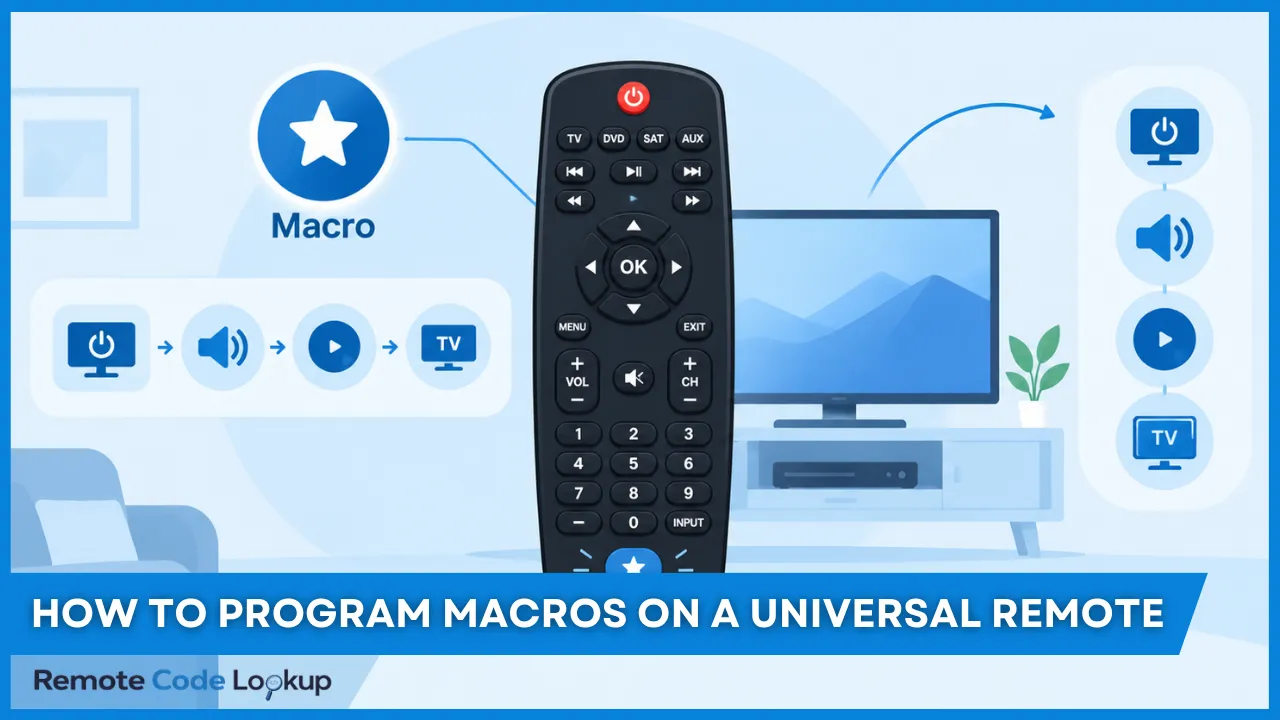
A macro on a universal remote refers to a programmable sequence of commands that allows one button press to perform multiple actions across one or more devices. Instead of sending each command separately, the remote stores the commands in a predefined sequence and executes them automatically when the macro is triggered.
For example, a home theater macro can turn on a TV, power on an AV receiver, select the correct input, turn on a Blu-ray player, and start playback. This can simplify routine operations that would otherwise require several button presses and device changes.
The exact macro features and programming procedure vary by universal remote brand and model. Some remotes allow delays between commands, while others support different types of triggers, programmable buttons, or control methods. Understanding what a macro is, how it works, what it is used for, and what the remote supports helps you determine whether it is suitable for a particular setup.
What Is a Macro?
A macro on a universal remote is a stored sequence of commands that the remote executes when you press an assigned button. It combines multiple device commands into a predefined routine, allowing several actions to be performed without pressing each button individually.
A normal remote button typically sends one command, such as Power, Volume Up, Channel Down, or Input. A macro combines multiple commands into a single routine. Depending on the universal remote, those commands may control the same device or several different devices.
A macro therefore consists of three basic elements:
- Trigger: The button or control that starts the macro.
- Command sequence: The individual commands stored in the macro.
- Execution order: The order in which the remote sends those commands.
Some universal remotes also allow delays to be inserted between commands. This can be important when a device needs time to power on or respond before receiving the next command.
A macro is primarily designed for a repeatable sequence of operations. It is not simply a way to combine unrelated commands. Its value comes from automating a routine that is performed in substantially the same way each time.
What Is a Macro Used For?
A universal remote macro is used to automate repetitive multi-step operations involving one or more devices. It is particularly useful when the same combination of commands is required whenever you perform a particular activity.
Common uses of a macro include:
- Starting a home theater: Turn on the TV and receiver, select the required input, and start the playback device.
- Watching TV: Power on the TV and receiver and select the appropriate source.
- Starting a streaming session: Turn on the TV, select the streaming input, and activate the streaming device.
- Listening to music: Turn on an audio receiver and select the required audio source.
- Shutting down a system: Turn off multiple devices that are normally powered down together.
The main advantage is that a repeated multi-step operation can be reduced to a single initiating action. Instead of remembering which device to control, which command to send, and in what order, the user can trigger the stored sequence from one button.
Macros are most useful when the devices and commands remain consistent. A fixed macro may be less suitable when the required actions change frequently or when the current state of a device affects the result.
For example, a macro that uses a toggle-based Power command may produce the opposite result if a device is already on. If the universal remote supports a discrete Power On command, using that command can make the macro more predictable because it explicitly requests the desired power state.
The purpose of a macro is therefore to automate a predictable sequence of remote-control operations, rather than simply control multiple devices.
How Does a Macro Work?
A universal remote macro works by associating a trigger with an ordered set of stored device commands. When the trigger is pressed, the remote executes the commands according to the sequence saved in the macro.
For example, a Watch Movie macro might contain:
- TV Power On
- AV Receiver Power On
- AV Receiver Input Select
- Blu-ray Player Power On
- Blu-ray Player Play
When the macro is triggered, the universal remote processes these commands in the programmed order. Each command identifies a device and a function that the remote is capable of controlling.
The order matters because some commands depend on the receiving device being ready. An AV receiver, for example, may need a short amount of time to complete its startup process before it can accept an input-selection command.
Universal remotes that support programmable delays can insert a pause between commands. The delay gives the receiving device time to respond before the next command is transmitted. The appropriate timing depends on the device and may need to be adjusted during testing.
The commands themselves can be transmitted using different control technologies. Depending on the remote and the equipment being controlled, a macro may use infrared (IR), radio frequency (RF), Bluetooth, a network connection, or another supported control method. The transmission method does not change the basic concept of a macro: a trigger causes the remote or its associated control system to execute a predefined command sequence.
The remote therefore does more than simply remember several button presses. It stores the relationship between the trigger, the individual commands, their execution order, and, on supported models, the timing between those commands.
What Do You Need Before Programming a Macro?
Before creating a macro, the devices and commands that the macro will use generally need to be available and configured on the universal remote.
Depending on the remote, this can involve:
- Setting up the TV, receiver, player, streaming device, or other equipment.
- Assigning the appropriate device modes or controls.
- Confirming that the required commands work individually.
- Choosing a button or control that can be assigned as the macro trigger.
- Determining the correct order for the commands.
- Identifying where delays may be necessary.
- Checking which macro features the remote supports.
The available options depend on the universal remote. Some models allow macros to be assigned to specific programmable buttons, while others provide dedicated macro functions. Advanced universal remotes or remote-control hubs may also combine commands for equipment controlled through IR, RF, Bluetooth, or network connections.
It is generally best to test each required command separately before adding it to a macro. If an individual command does not work correctly, placing it in a macro will not normally resolve the underlying problem.
The programming procedure also varies considerably between universal remote brands and models. The number of commands supported, available trigger buttons, delay options, and supported devices can all differ.
How Do You Program a Macro on a Universal Remote?
To program a macro, first make sure the devices and commands it will use are already configured on the remote. Having the required devices configured is part of programming a universal remote, and those commands must be available before they can be added to a macro. Once the devices are configured, enter macro programming mode, select a trigger button, add the required commands in sequence, set any necessary delays, and save and test the macro. The exact button combinations and menu names vary by remote model, but the programming process generally follows the same structure.
Step 1: Enter Macro Programming Mode
Use the remote’s designated setup or programming controls to enter macro programming mode and select the macro function. Depending on the model, this may involve holding a Setup button, selecting a Macro option from a menu, or using a dedicated macro-programming control.
The remote may indicate that it has entered programming mode through an indicator light, display message, or on-screen prompt. Follow the model-specific procedure because the button sequence for entering macro programming mode is not standardized across universal remotes.
Step 2: Select the Macro Trigger Button
Choose an available programmable button that will initiate the macro. Some universal remotes provide dedicated macro buttons, while others allow a macro to be assigned to a programmable key.
The selected button becomes the trigger for the stored sequence. When pressed during normal operation, it runs the macro instead of performing only its original function. If the macro replaces an existing command, make sure you do not remove a function you still need. Some remotes also restrict which buttons can be used as macro triggers.
Step 3: Add the Required Commands
Select each configured device and add the commands in the order in which they need to be executed. The remote stores these commands as part of the macro sequence.
For example, a home theater macro could contain these commands:
- TV: Power On
- AV receiver: Power On
- AV receiver: Select HDMI 1
- Streaming device: Power On
- Streaming device: Play
The device associated with each command matters because the remote must know where to send it. On some remotes, you select the device mode before adding its command. Others provide commands from multiple configured devices in a menu.
Add only the commands required for the intended routine. Unnecessary commands can make the macro slower or cause unwanted device actions.
Step 4: Set Command Delays
Insert a delay between commands when a device needs additional time to respond. Delays are particularly useful after power commands or input changes because some devices do not become ready immediately.
For example, an AV receiver may need time to finish powering on before it can accept an input-selection command. If the input command is sent too soon, that step may fail.
If the remote provides configurable delay intervals, use the shortest delay that allows the device to respond reliably. Excessively long delays make the macro slower without improving its operation.
Step 5: Save the Macro
After entering all commands and required delays, use the remote’s confirmation or exit control to save the macro. The remote then stores the sequence and associates it with the selected trigger button.
Depending on the model, you may need to press the Setup or Macro button again or select Save, Done, or a similar option. Follow the remote’s specific confirmation procedure before leaving programming mode.
Step 6: Test the Macro
Return the remote to normal operation and press the assigned trigger button to run the macro. Check that each command executes correctly and that the devices respond in the intended order.
If a command fails, check its device assignment and position in the sequence. If a device is not ready when its command is sent, adjust the relevant delay and test the macro again.
Once the macro is saved and tested, you can modify its configuration in the future if the routine needs to change. Depending on the remote model, this may include changing the trigger button, adding or removing commands, reordering the sequence, or adjusting command delays.
How Is a Macro Different From Other Programmable Features?
A macro differs from other universal remote functions based on what it is designed to accomplish. A macro executes a predefined sequence of commands, while an activity coordinates multiple devices for a specific task and an alias links a button to an existing command.
What Is the Difference Between a Macro and an Activity?
A macro executes a predefined sequence of commands when triggered, while an activity coordinates multiple devices around a specific task. For example, a Watch Movie macro may turn on the TV, receiver, and Blu-ray player in a fixed sequence, whereas an activity coordinates the devices and their functions for a specific task such as watching a movie. An activity can therefore provide broader task based control than a fixed macro sequence. Some universal remotes such as One For All also allow macros to be used within an activity, but this capability depends on the remote model and its programming system.
What Is the Difference Between a Macro and an Alias?
A macro executes multiple commands as a sequence, while an alias links a button to an existing device command. For example, a macro could turn on several devices with one button press, while universal remote aliases can make an existing command available from another button without creating a separate command. An alias is therefore useful when the goal is to reuse one device command rather than execute a sequence of commands.
What Is the Difference Between a Macro and a Punch-Through?
The difference between a macro and a punch-through is that a macro executes a predefined sequence of commands from a single trigger, while punch-through routes selected controls to a device function while another device mode remains active. For example, a macro can turn on the TV, turn on the receiver, and select an input in sequence, while punch-through can let the receiver’s volume controls operate while the remote is in DVD mode.